

When your WiFi suddenly cuts out, the first reaction is usually a mix of frustration and panic. Before you start rearranging your entire living room or resign yourself to an hour on hold with customer support, take a deep breath. I've found that most of the time, the fix is surprisingly simple.
These initial steps are all about tackling the most common culprits—the little hiccups that often throw a wrench in our wireless world.
The Magic of a Proper Reboot
I can't tell you how many times this has saved the day. The first, and almost always most effective, fix is to simply restart your gear. But it's not just about the router. You need to reboot both the router and the device you're using (your laptop, phone, etc.). This double-whammy clears out any temporary software glitches on both ends, giving you the best shot at getting back online fast.
There's a right way to do it, though. Just flicking the power switch off and on isn't quite enough.
- Unplug your router from the wall outlet. Don't just turn it off; pull the plug.
- Wait a full 60 seconds. This is the crucial part. It gives the internal components time to fully discharge and clear out any errors hanging around in their memory.
- Plug it back in and give it a few minutes. Let it go through its full startup sequence—the lights will blink, change colors, and eventually settle.
- While that's happening, do a full restart of your computer or phone.
Once both are back up and running, try connecting again. Nine times out of ten, this is all it takes.
Decode Your Router's Blinking Lights
Those little lights on the front of your router aren't just for decoration; they're your first clue to what's going on. They're trying to tell you a story. While every router model is a bit different, they generally follow the same color-coded language:
- A solid green light is what you want to see. It typically means you have a solid, stable connection for power, internet, and WiFi.
- A blinking green or blue light usually just means the router is busy sending and receiving data. That's perfectly normal.
- A solid amber or orange light is the one to watch out for. This often points to a connection problem, like the router isn't getting an internet signal from your provider.
- No light at all means that feature is off or the router isn't getting power. If the power light is off, the first thing to check is the power cord.
To help you visualize where the problem might lie, think of troubleshooting as a simple process of elimination.
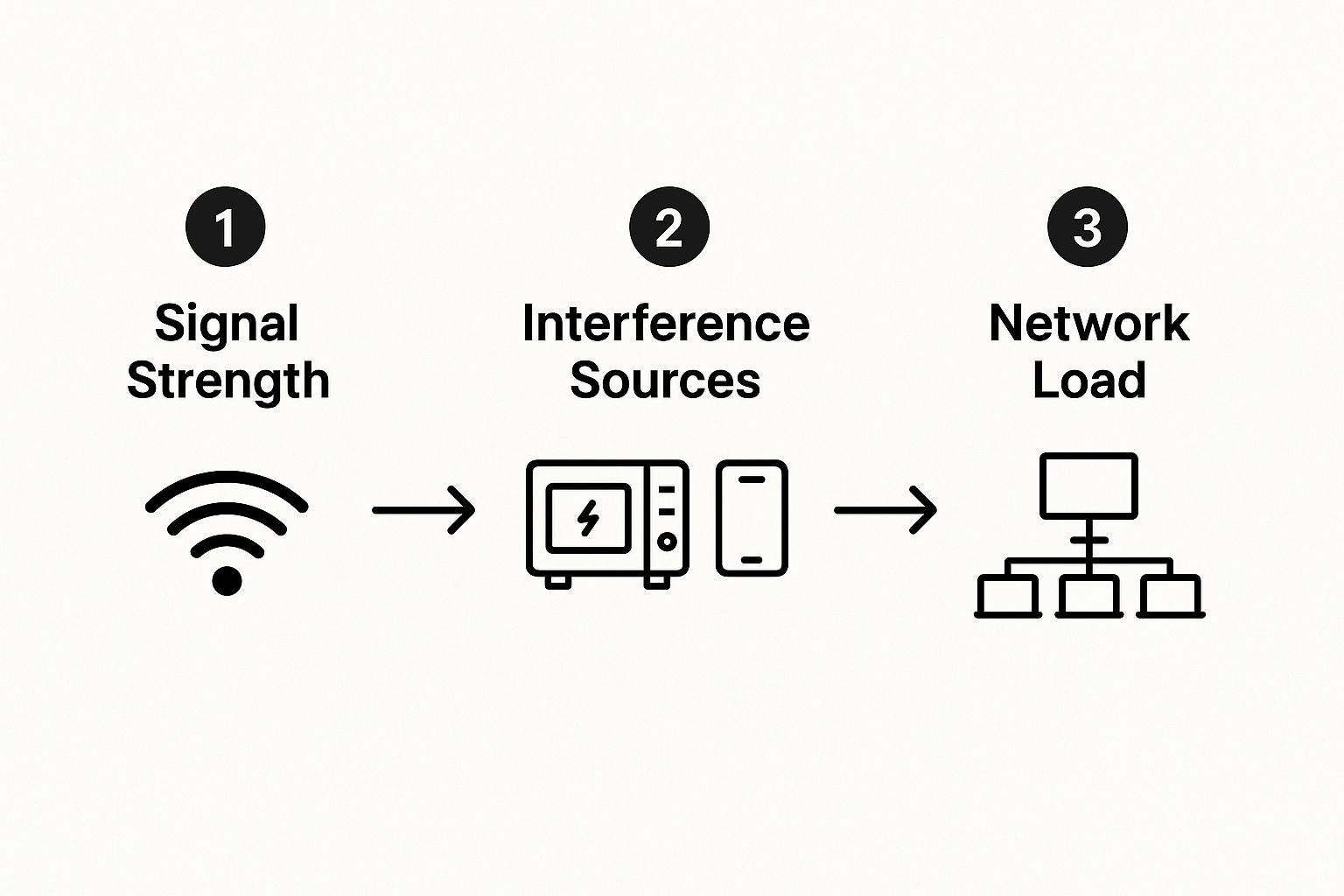
This flow really helps simplify things. Start with the most obvious (your signal), then look for things that could be getting in the way (interference), and finally, think about how much you're asking your network to do (load).
For those times when you need a quick mental checklist, I've put together this table. It's a great way to run through the most common symptoms and quickly pinpoint where you should focus your efforts.
Quick WiFi Diagnostic Checklist
Use this checklist to quickly isolate the source of your WiFi connection issues.
| Symptom Check | What to Do | Potential Problem Source |
|---|---|---|
| No WiFi signal on any device | Check router lights. Reboot the router. | Router power issue or ISP outage. |
| Can't connect on one device, but others work | Reboot the specific device. "Forget" the network and reconnect. | Device-specific software glitch. |
| Connected, but no internet access | Check router's internet/WAN light. Reboot router and modem. | Modem not connecting to the ISP. |
| Slow and buffering connection | Move closer to the router. Check for physical obstructions. | Signal interference or weak signal strength. |
| Connection drops intermittently | Update router firmware. Check for nearby interfering devices. | Outdated firmware or channel interference. |
Running through these quick checks can often save you a call to tech support. If you've tried these and are still stuck, it's time to dig a bit deeper.
Key Takeaway: The whole point of these initial checks is to figure out if the problem is inside your house or something bigger. I remember a recent Verizon mobile network outage where data traffic only dipped 10-20%, but voice calls were completely out. It’s a perfect example of how not all connection problems are immediately obvious. If a simple reboot doesn't do the trick, your next move is to start investigating factors outside your immediate control.
How Your Home's Layout Sabotages Your Wi-Fi
It’s one of the most common frustrations I hear about. You’ve got a great router and a fast internet plan, but your Wi-Fi still stinks. Before you spend hours on the phone with your internet provider, take a look around your house. Often, the real culprit isn't your tech, but your home itself.
The very layout and materials of your living space can act as silent saboteurs, weakening and blocking the signal before it ever reaches your devices.
Think of your Wi-Fi signal like a lightbulb. The closer you are, the brighter the light. As you move away, it gets dimmer. Now, what happens when you put things in the way? A thin paper lampshade might dim it a little, but a solid brick wall will block it almost completely. Wi-Fi signals work in a very similar way.
The Hidden Blockers in Your Home
You’d be surprised by what’s getting in the way of your signal. Everyday objects and common building materials can absorb, reflect, or just plain block the radio waves carrying your internet connection.
Some of the most common culprits lurking in your house include:
- Dense Walls: Brick, concrete, and plaster are notorious for killing Wi-Fi. If your router is on one side of a thick wall and your office is on the other, you're setting yourself up for connection drops.
- Metal Everywhere: Honestly, metal is Wi-Fi's biggest enemy. We're talking metal studs inside your walls, large appliances like refrigerators and ovens, and even that metal filing cabinet in your home office. These things can create massive dead zones where the signal simply can't get through.
- Water and Glass: That beautiful fish tank or a wall of windows can also cause interference. Water is great at absorbing radio frequency energy, effectively stopping the signal cold.
Sometimes, the problem is much bigger than your home. External events, like natural disasters, can cause widespread outages. For instance, recent California wildfires damaged physical internet cables, causing internet traffic to plummet by over 50% in some areas. It’s a stark reminder of how fragile the infrastructure can be, impacting your local Wi-Fi even when your own gear is working perfectly. You can read more about how external events impact internet stability to get the full picture.
Real-World Tip: I once helped a friend who was tearing his hair out over a dead signal in his bedroom. It turned out his router was tucked away inside a media cabinet, right behind a massive TV. We moved the router just a few feet onto an open shelf, and boom—problem solved. It's often that simple.
The Smart Way to Place Your Router
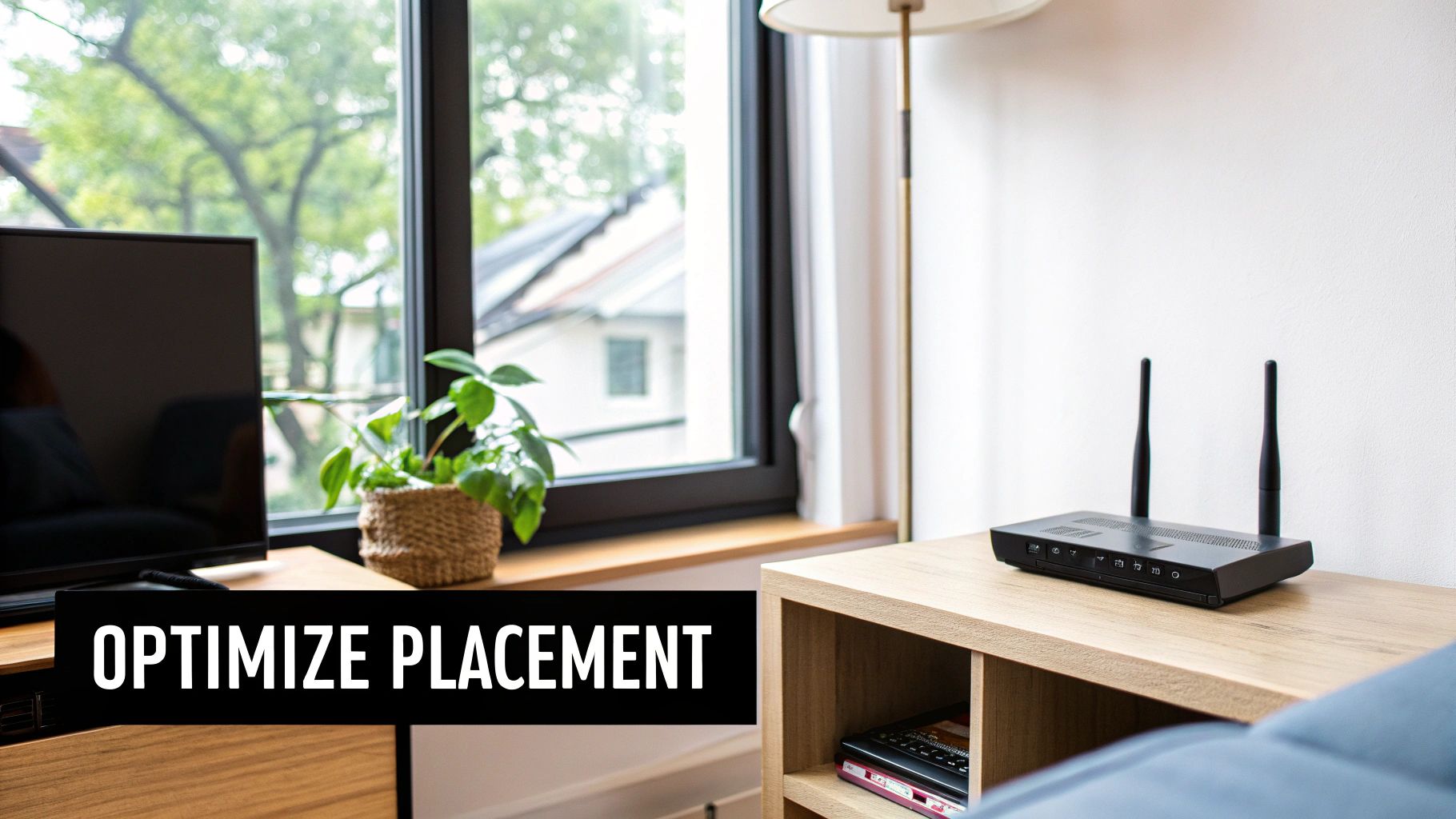
If you only do one thing after reading this, make it this: move your router. Tucking it away in a closet or on the floor in a far corner is the absolute worst thing you can do for your signal.
For the best possible coverage, your router needs to be in a central, elevated location.
Think in terms of "line of sight." Your router should have the clearest possible path to as many parts of your home as it can. Placing it on a high bookshelf in a central room is ideal because it allows the signal to travel over and around many of the common obstacles in a home.
Choosing Between 2.4 GHz and 5 GHz
Most modern routers are dual-band, meaning they broadcast two different signals. Knowing which one to use for which device is key to a happy Wi-Fi experience.
- 2.4 GHz: Think of this band as a long-distance runner. It has a much longer range and is far better at pushing through walls and floors. The trade-off? It's slower and gets crowded easily by interference from other common household devices, like microwaves and old cordless phones.
- 5 GHz: This band is the sprinter. It delivers much faster speeds and operates on a less congested channel, but its range is shorter and it really struggles to get through obstacles.
So, how do you use this to your advantage? A simple two-part strategy works best. Connect devices that are far from the router or don't need blistering speed (like smart speakers or thermostats) to the 2.4 GHz band. For the devices closer to the router that you use for streaming 4K video or online gaming, connect them to the 5 GHz band for a faster, more stable connection.
Fine-Tuning Your Router and Device Settings
Alright, so you’ve found the perfect spot for your router, but your Wi-Fi is still acting up. Now it's time to pop the hood and look at the software side of things.
Diving into your router's settings might sound a bit technical, but trust me, a few small tweaks can make a night-and-day difference in your network’s performance and stability. Think of it as a quick digital tune-up for your home network.
Keep Your Router’s Firmware Fresh
One of the most important—and most often forgotten—tasks is updating your router's firmware. This is the core software that makes the whole thing run. Router manufacturers are constantly pushing out updates to patch security flaws, fix annoying bugs, and improve overall performance.
Honestly, an outdated router is often an unstable one. I've seen countless cases where constant connection drops and slow speeds were solved with a simple firmware update. The process is usually pretty painless:
- Log in to your router’s admin panel through your web browser.
- Look for a section called "Firmware Update," "Router Update," or something similar.
- Most modern routers can check for and install the latest version automatically. Just click the button and let it do its thing.
Keeping your software up-to-date is a basic but powerful principle for any tech, from your router to your website's SEO tools. It's a foundational concept that experts, like the team at RankMath, understand well.
Change Your Wi-Fi Channel and Band
If you live in an apartment building or a dense neighborhood, your Wi-Fi is probably fighting for airtime with dozens of other networks. This is a massive source of interference. It’s like trying to have a conversation in a crowded, noisy room—everyone is shouting over each other.
Most routers default to an "Auto" channel setting, but they don't always pick the quietest one. By logging into your router and manually selecting a less congested channel (typically 1, 6, or 11 for the 2.4 GHz band), you can often sidestep the digital noise and get a much more stable connection.
Pro Tip: Grab a free Wi-Fi analyzer app for your smartphone. It will show you a map of all the networks around you and which channels are the most crowded. This takes out all the guesswork.
You also have a choice between the 2.4 GHz and 5 GHz Wi-Fi bands. Each has its pros and cons, and knowing when to use which can seriously improve your experience.
Choosing Between 2.4 GHz and 5 GHz Bands
Deciding which Wi-Fi band to connect your devices to isn't just a technical detail—it can have a real impact on your daily internet use. The 2.4 GHz band is like a country road: it goes farther, but it's slower and more congested. The 5 GHz band is the superhighway: much faster and less crowded, but with a shorter reach. Here’s a quick breakdown to help you choose.
| Consideration | 2.4 GHz Band | 5 GHz Band |
|---|---|---|
| Speed | Slower speeds, best for basic browsing and email. | Much faster speeds, ideal for streaming 4K video, online gaming, and large file downloads. |
| Range | Longer range, better at penetrating walls and floors. | Shorter range, best for devices in the same room or nearby. |
| Interference | More prone to interference from other Wi-Fi networks and household appliances (microwaves, cordless phones). | Less crowded and less susceptible to interference from other devices. |
| Best For | Smart home devices (plugs, bulbs), phones, and laptops far from the router. | Gaming consoles, smart TVs, streaming devices, and computers close to the router. |
For the best results, try to connect your high-priority, high-bandwidth devices (like your smart TV or gaming PC) to the 5 GHz network. Use the 2.4 GHz network for everything else, especially devices that are further away from the router or don't need blazing-fast speeds. This simple bit of network management can make everything feel faster and more reliable.
Simple Fixes on Your Device
Sometimes the problem isn't the router at all—it's your phone or computer. The easiest trick in the book is to make your device "forget" the network and then reconnect from scratch.
This simple action clears out any old or corrupted connection settings that might be causing a fuss. On your device’s Wi-Fi settings, just find your network, tap "Forget," and then reconnect by entering your password again. You'd be surprised how often this quick reset solves those stubborn "connected but no internet" headaches.
Knowing When to Call Your Internet Provider
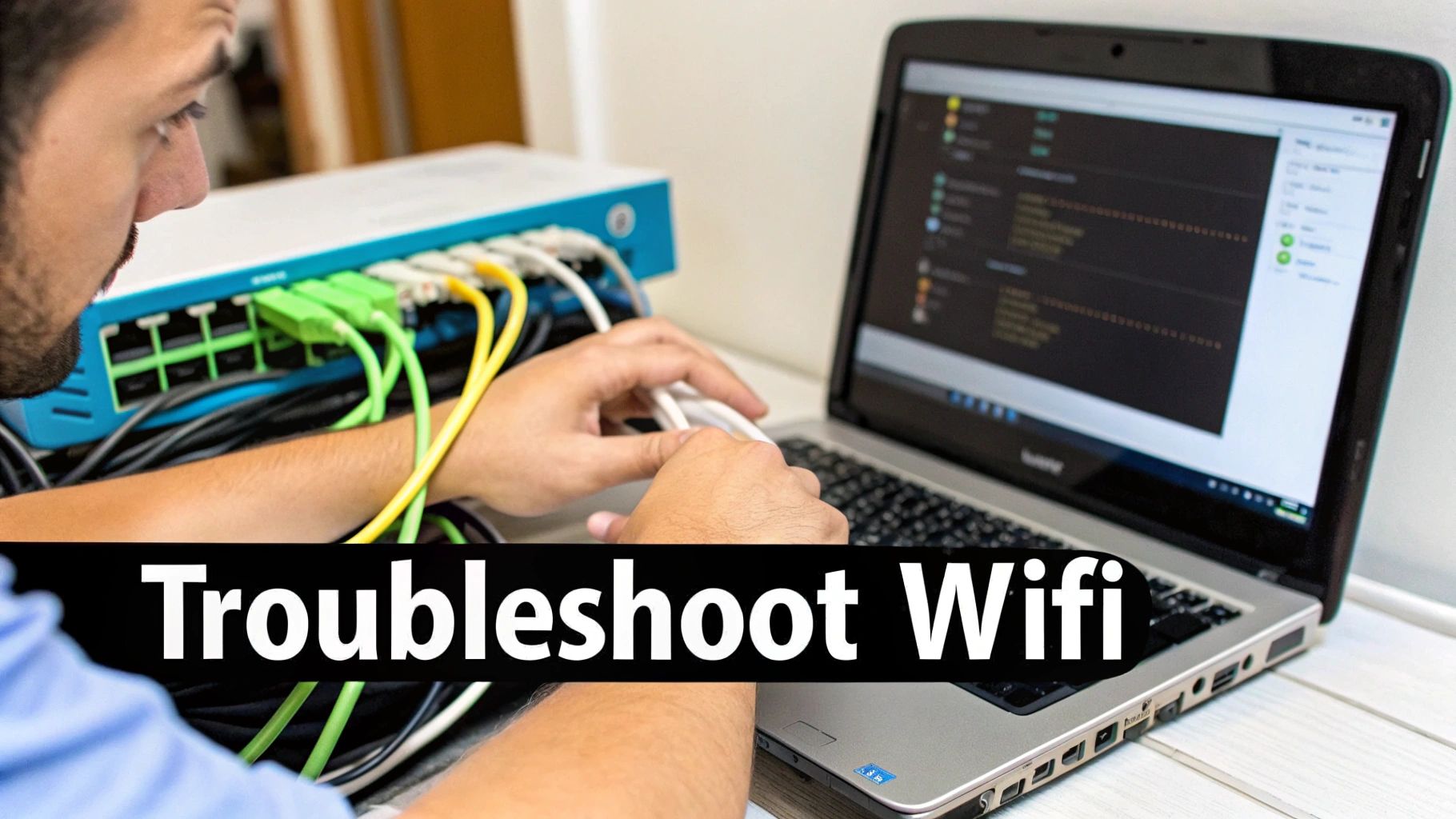
You've done everything right. You rebooted the router, double-checked every setting you can think of, and maybe even rearranged the furniture hoping for a better signal. Still, nothing. Your internet is either painfully slow or completely gone.
It's that sinking feeling when you realize the problem might not be inside your home at all. This is usually the moment to pick up the phone and call your Internet Service Provider (ISP). But before you brace yourself for a long hold time, a little prep work can make that call go so much smoother. The goal here is to get past their standard script and straight to the real issue.
Is It Just You or the Whole Neighborhood?
First things first: is this your problem, or is it a wider service outage? If the whole neighborhood is offline, no amount of router-restarting on your end is going to fix it. This is a clear sign the issue is with your provider.
Thankfully, you don't have to guess. I always check a third-party site like Downdetector first. It collects real-time reports from other users, giving you a quick snapshot of your ISP's network status in your area. You should also check your provider's official website or social media pages, as they'll often post updates about known disruptions.
While technical glitches are common, not all outages are accidental. Since 2018, there have been over 860 documented internet shutdowns across the globe, often for political reasons or during public events. These deliberate actions create massive Wi-Fi connection problems. You can learn more about these intentional disruptions on the Internet Society's Pulse platform.
Key Takeaway: If you confirm a local outage, your best move is to just wait it out. But if there are no widespread reports and the problem lasts for more than an hour, it's time to make the call. Walking into that conversation with information is your best weapon.
Having a Productive Call with Customer Support
When you finally get a support agent on the line, they're trained to walk you through the most basic steps—the same ones you've already tried. To avoid this frustrating loop, you need to steer the conversation from the get-go.
Start by calmly explaining the issue, then immediately follow up with a list of the troubleshooting you've already done. This signals that you're past the basics and need more advanced help.
Here’s a quick script you can adapt:
- "Hi, my internet is down. I've already power-cycled my router and modem, checked all the physical cable connections, and confirmed the issue is happening on multiple devices."
- "I also checked an outage detector and don't see any widespread reports in my area. The internet light on my modem is blinking amber, which usually points to a signal problem on your end."
- "I've also run a speed test and my speeds are way below what I pay for." It's always a good idea to check your internet speed on your phone and have those numbers ready.
This approach shows you've done your due diligence and prompts them to escalate your case, check the signal from their side, or schedule a technician. You’re no longer just another caller reading from a script; you're an informed customer trying to get the service you pay for back online.
Upgrading Your Hardware for a Stronger Signal
So, you’ve tried all the software tricks. You’ve moved your router to the most optimal spot in the house, but you're still stuck with frustrating dead zones. When that happens, it’s a good sign that it's time to look at a hardware upgrade.
Persistent Wi-Fi problems, especially in larger homes or places with weird layouts, often can't be solved by your router alone. Sometimes, your signal just needs a helping hand.
This doesn't mean you have to run out and buy a brand-new, top-of-the-line router. Instead, a few specialized devices can extend your network's reach, finally turning those Wi-Fi-free voids into reliable hotspots. The three main players here are Wi-Fi extenders, mesh systems, and Powerline adapters. Each one tackles the problem differently, and the best choice really boils down to your home's unique layout and your specific needs.
Wi-Fi Extenders for Simple Fixes
The most straightforward and often cheapest solution is a Wi-Fi extender, which you might also hear called a repeater. Think of it as a megaphone for your Wi-Fi. You plug it in about halfway between your router and the dead zone, it grabs the existing signal, and then blasts it out further. Simple as that.
- Best for: Covering a single, stubborn area. If you just have one back bedroom or a finished basement that can't get a decent signal, an extender is a super cost-effective fix.
- The Catch: Extenders create a separate network (you'll often see your Wi-Fi name with "_EXT" added) that you have to manually connect to. More importantly, they typically cut your potential speed in half. This is because they use the same radio to both receive and transmit the signal. It's perfectly fine for basic browsing but can become a real bottleneck for streaming 4K video or online gaming.
Mesh Systems for Whole-Home Coverage
If you’re dealing with dead zones all over your multi-story house or a long, spread-out floor plan, then a mesh Wi-Fi system is the modern gold standard. A mesh system completely replaces your single router with a team of "nodes" that work together seamlessly.
You connect one node to your modem, then place the others around your home. They work in concert to blanket your entire house in a single, unified Wi-Fi network.
As you walk from room to room, your phone or laptop automatically and seamlessly hops to the strongest node without you ever noticing a thing. This completely gets rid of the hassle of switching networks manually and delivers far more consistent speeds than a basic extender. They're a bigger investment upfront, but they are hands-down the best way to conquer widespread Wi-Fi issues.
Expert Insight: The real magic of a mesh network is its intelligence. The nodes are constantly talking to each other to manage traffic and find the most efficient path for your data. If one node gets too crowded or happens to go offline, the system instantly reroutes your connection through another one, keeping your internet stable and fast.
Powerline Adapters for Tricky Situations
But what if you're up against something truly stubborn, like thick brick walls or metal obstacles that just kill your signal? This is where Powerline adapters are a lifesaver. These clever gadgets use your home's existing electrical wiring to carry the internet signal.
They come in a kit with two adapters:
- Plug the first adapter into an electrical outlet near your router and connect them with an Ethernet cable.
- Then, plug the second adapter into an outlet in the room with the dead zone.
That second adapter will then broadcast a fresh Wi-Fi signal or give you a wired Ethernet port right where you need it. It’s a brilliant way to bypass physical obstructions completely. For a better idea of how these different solutions compare, take a look at this visual comparison of network hardware. Powerline adapters are fantastic problem-solvers for those really tough spots where even a mesh system might struggle with interference.
Common Questions About Pesky WiFi Problems
Even after you've unplugged, rebooted, and repositioned everything, some nagging questions can stick around. These are the "what ifs" and "whys" that can make you want to throw your router out the window. Let's tackle some of the most common ones I hear all the time.
Is My WiFi Secure if My Password Is Strong?
A strong password is a great start, but it's only half the battle. Think of it like having a state-of-the-art deadbolt on a cardboard door. If the door itself is weak, the lock doesn't matter much. The "door" for your WiFi is its encryption type.
Most modern routers offer WPA3, which is the gold standard right now. It's worlds better than its older siblings, WPA2 and the ancient, completely insecure WEP. If your router is still using one of those older protocols, even the most complex password won't keep a determined hacker out for long. Always dive into your router's settings and crank the security up to the highest level it supports—ideally WPA3, or at the very least, WPA2-AES.
Will More Antennas on a Router Give Me Better WiFi?
More antennas can mean better performance, but it's not a simple numbers game. What really makes a difference is the technology behind them, specifically MIMO (Multiple-Input, Multiple-Output). MIMO is what lets a router talk to multiple devices at the same time, which is a lifesaver in a home full of phones, laptops, and smart speakers.
But just slapping more antennas on a router won't solve problems caused by thick walls or interference. I've seen it countless times: a well-placed router with two antennas and modern tech will run circles around a poorly located one with four. The quality of the technology inside is far more important than the antenna count on the outside.
Key Insight: A router with multiple antennas is great, but only if you put it in the right spot. A central, elevated location away from concrete walls and big metal appliances is still the single most important factor for getting strong, consistent WiFi throughout your house.
Can My Neighbor’s WiFi Interfere with Mine?
Oh, absolutely. This is one of the most common culprits behind a mysteriously slow connection, especially if you live in an apartment building or a tightly packed neighborhood.
Imagine a crowded room where everyone is trying to talk at once—that's what your WiFi channels can look like. Every nearby network is broadcasting, and when too many try to use the same channel, they just end up shouting over each other. This digital noise leads to a sluggish, unreliable connection for everyone involved.
This is a huge issue on the popular 2.4 GHz band, which only has three channels (1, 6, and 11) that don't overlap. A quick fix is often to log into your router's settings and manually switch to a less crowded channel, or better yet, move your important devices over to the much wider and less congested 5 GHz band.
Why Is My Download Speed Fast but My Upload Speed Slow?
This is a classic, and I get this question all the time. The good news? It's usually not a problem with your WiFi at all. It's by design. Most home internet plans are asymmetrical, meaning they are built to give you much faster download speeds than upload speeds.
Internet providers do this because the average person spends way more time downloading things (streaming shows, browsing sites, getting files) than uploading them (sending emails, posting photos). A recent Verizon outage really highlighted this; their data traffic (downloads) only dipped by 10-20%, while voice services (which rely on uploads) took a much bigger hit. Unless you're paying a premium for a "symmetrical" fiber optic plan, seeing a huge gap between your download and upload numbers is perfectly normal.
At transitwirelesswifi, we believe everyone deserves a clear and reliable connection. We provide expert-backed guides and reviews to help you solve your tech problems. Find more insights and solutions at https://transitwirelesswifi.com.