

Powering up your Kindle is a pretty simple affair, but knowing the little details can make a big difference in battery health and how quickly you get back to reading.
Charging Your Kindle The Right Way
Getting a full and efficient charge every time is key to keeping your e-reader ready for the next chapter. While it's not complicated, there are a few nuances to keep in mind. Think of it less as a chore and more as a quick pit stop for your digital library.
For a quick overview, this visual breaks down the essentials from start to finish.
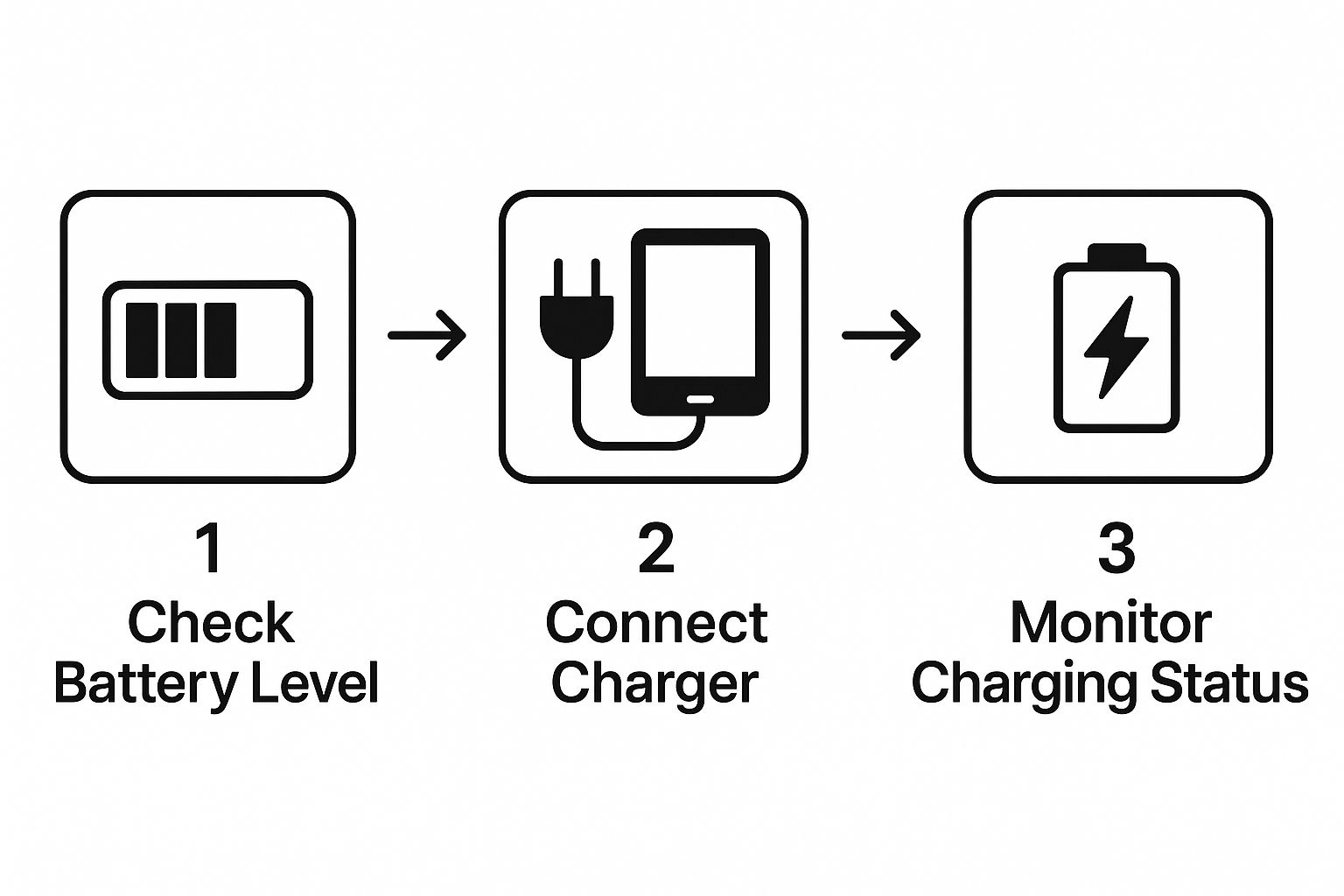
As you can see, it really boils down to three simple actions: checking your battery level, connecting the charger correctly, and watching for the status light. From a dead battery, expect it to take around four hours to reach a full charge if you're using a standard computer USB port. Just plug it in, and the small indicator light next to the port will glow amber, turning a satisfying green once it's fully charged.
Wall Outlet vs. Computer Charging
So, what’s the best way to charge? You've got options, and the choice between a wall outlet and your computer's USB port usually comes down to speed versus convenience. I almost always opt for a dedicated wall adapter because it delivers power more directly and consistently, getting the job done faster.
I've put together a quick comparison to help you decide which method fits your situation best.
Kindle Charging Methods at a Glance
| Charging Method | Typical Charge Time | Best For |
|---|---|---|
| Wall Outlet | 2-4 hours | The fastest and most reliable option for a full charge, especially when you're in a hurry. |
| Computer USB Port | 4-6 hours | Super convenient when a wall outlet isn't handy, like when you're working at your desk anyway. |
Ultimately, both methods work just fine and won't harm your Kindle. It’s all about what’s most practical for you at the moment.
By the way, if you're interested in the standards that help digital content display properly online, you might find our guide on the Open Graph protocol interesting.
Picking the Right Charging Gear
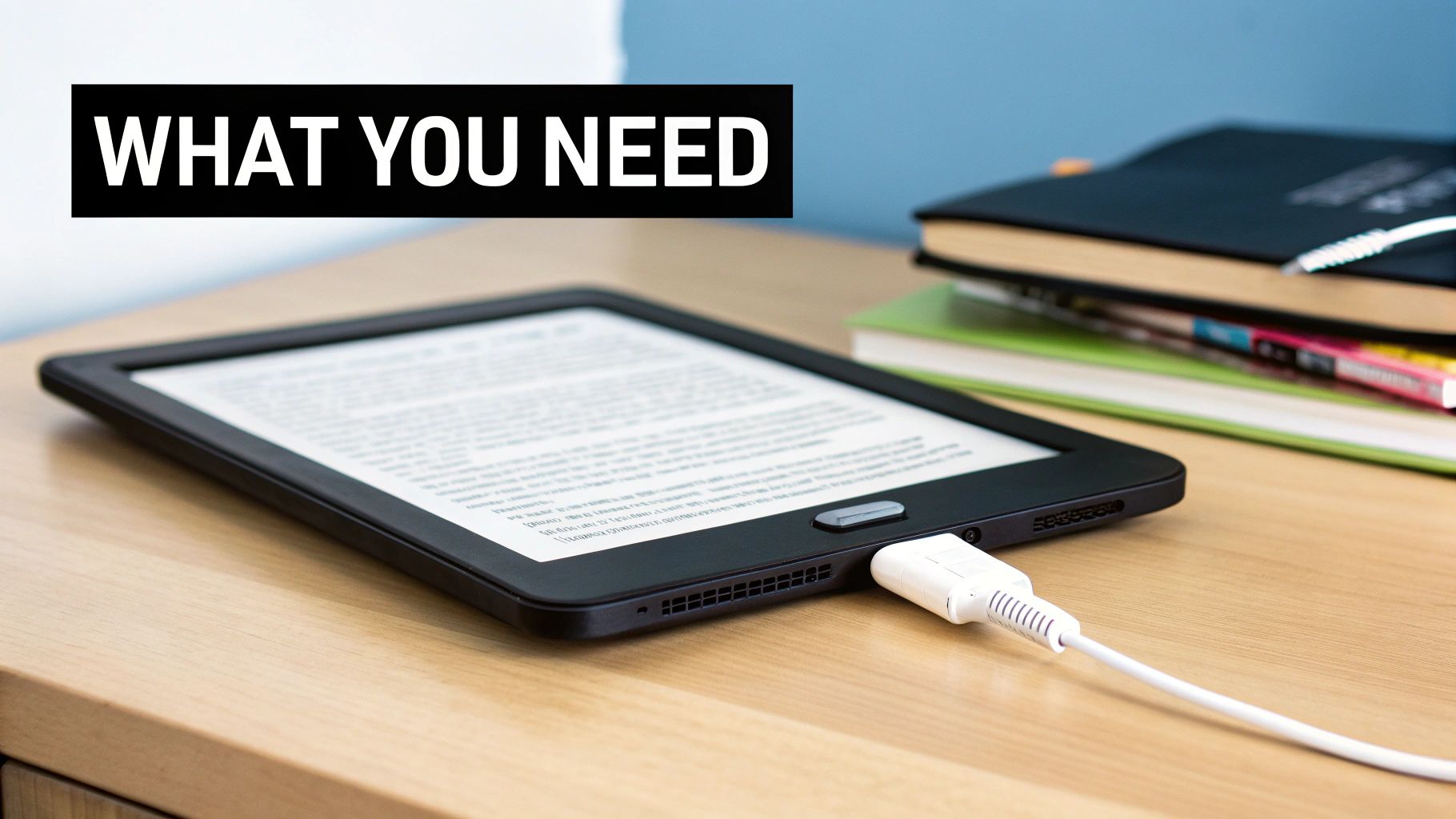
You might not think much about the gear you use to charge your Kindle, but it actually matters more than you’d expect. Just grabbing any old cable and plug you have lying around can lead to painfully slow charging. Worse, it could even hurt your battery's health over time. It’s worth taking a quick second to make sure you have the right tools for the job.
First thing’s first: you need to know what kind of port your Kindle has. Older models tend to have a Micro-USB connection. If you have a newer device, like a recent Paperwhite or Oasis, it’s likely rocking the more modern USB-C standard. This switch isn't just for show; some reports indicate it can slash charging times by as much as 30%. You can dig into this trend more by checking out the latest market research on Amazon Kindle.
Your Power Source Options
Once you've got the correct cable, the next question is where to plug it in. Each option comes with its own set of pros and cons.
- Official Amazon Adapter: This is your safest and most reliable choice, hands down. It's built specifically for your Kindle, so you know it’s delivering a steady, safe charge every time.
- Your Laptop's USB Port: Super convenient if you’re already at your desk, but be warned—it's usually much slower than plugging into a wall outlet.
- Third-Party Wall Adapters: These can work just fine, but my advice is to stick with brands you trust. A cheap, uncertified charger might give you inconsistent power, and that’s just not good for your battery in the long run.
- Portable Power Banks: A lifesaver for travelers. A good power bank is like having a wall outlet in your bag, giving you a full, fast charge wherever you are.
From Low Battery to Fully Charged
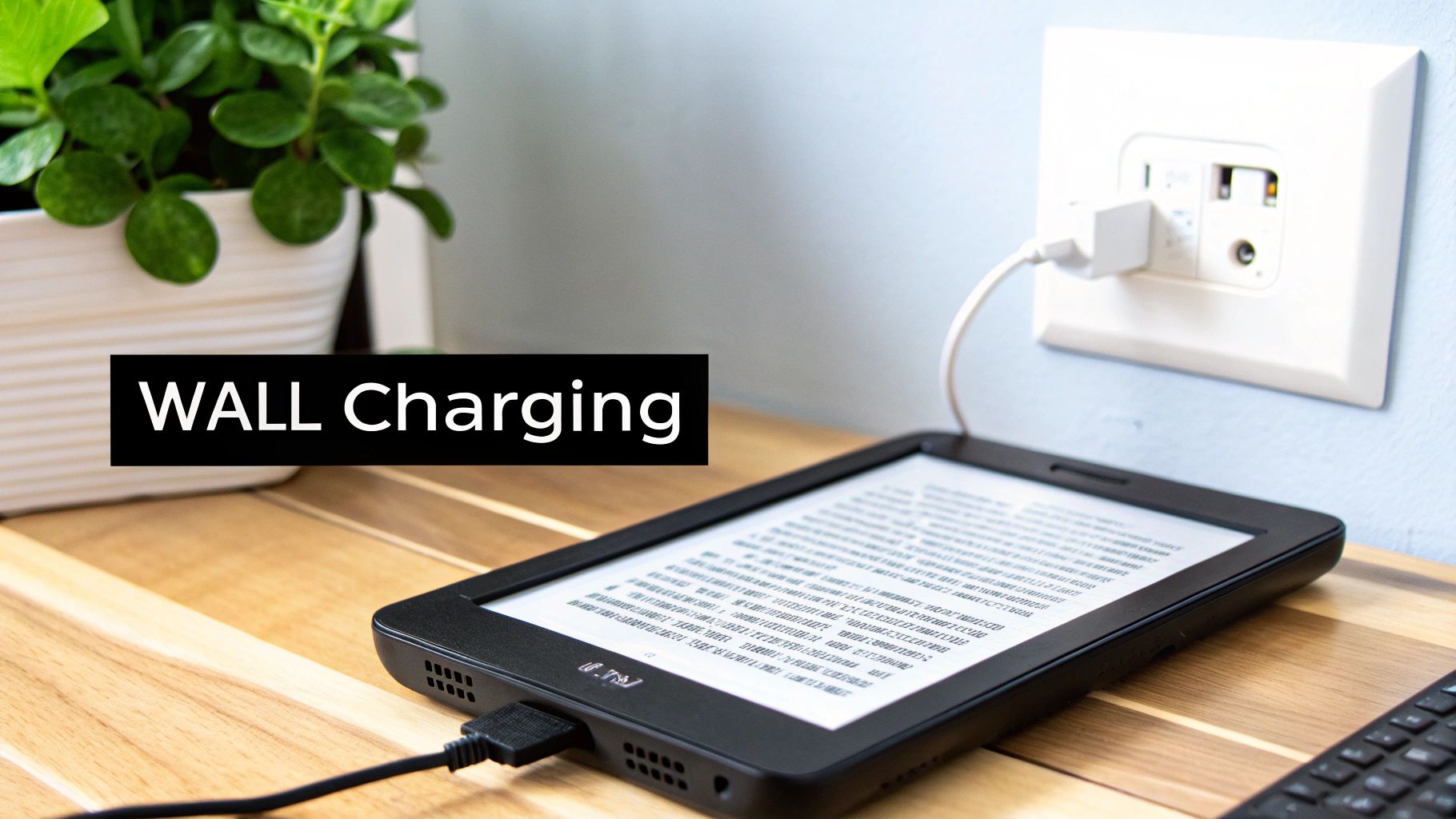
Alright, let's walk through what a typical charging session looks like. It’s a simple process, but knowing the little details helps you get it right every time so you can get back to your stories without a second thought.
First things first, find the charging port. On most Kindle models, including the standard one and the Paperwhite, it's located right on the bottom edge. If you have a Kindle Oasis, you'll find it on the side with the thicker grip. Amazon designed the placement to be convenient whether you're holding it or have it lying on a table.
Connecting and Making Sure It’s Working
Once you've spotted the port, gently plug in the right cable—that’s either a Micro-USB or a USB-C, depending on how new your Kindle is. The cable should slide in without any resistance. A word of advice from experience: never force it. If it doesn't fit, you probably have the wrong cable or it's upside down.
As soon as you connect it to a power source, your Kindle gives you a couple of clear signs that it’s charging.
The easiest way to know for sure is the small LED light right beside the port. An amber or orange light means it's actively charging. When that light turns green, your battery is full and you're good to go.
This little light is your best friend for checking the status at a glance, without even needing to turn on the screen. It's a simple, foolproof indicator that everything is working as it should.
You'll also see a confirmation on the screen itself. When you wake the screen, the battery icon in the top right corner will have a little lightning bolt symbol inside it. This is just another visual cue that your Kindle is getting the juice it needs.
By keeping an eye on these simple signs—the port location, a smooth cable connection, and the status light—you take all the guesswork out of charging. It just becomes a quick, reliable routine to make sure your Kindle is always ready for your next reading adventure.
Solving Common Kindle Charging Problems
It's one of the most frustrating feelings for a reader: you plug in your Kindle, ready for a charging session, and… nothing happens. Before you panic and assume the worst (like a dead battery), take a breath. Most of the time, the culprit is something surprisingly simple and easy to fix.
Let's walk through the most common issues I've seen, starting with the easiest solution.
First thing's first: try a soft reset. This isn't a factory reset—it won't touch your library or settings. It's just a simple reboot that can clear out a temporary software bug that’s preventing your Kindle from recognizing the charger. All you have to do is press and hold the power button for a full 40 seconds. Don't let go early; time it on your phone if you have to! The device will restart on its own. This one little trick solves a huge number of charging and screen issues.
Inspect Your Charging Tools
If the reset didn't do the trick, it's time to play detective with your charging gear. A bad cable or a faulty wall adapter is often the real problem.
- Check the Cable: Give your USB cable a good look-over. See any kinks, frays, or exposed wires? Even if it looks fine, try using a different cable that you know for a fact works with another device, like your phone.
- Inspect the Wall Adapter: The little power brick you plug into the wall can also fail. Swap it out for a different one. You can use another phone charger or even plug the USB cable directly into a computer's USB port to see if that gets things going.
Here’s a pro tip: sometimes the problem is just a tiny bit of dust. I've seen lint from a pocket or bag get wedged inside the Kindle's charging port, preventing the cable from making a solid connection. Grab a flashlight and peek inside. If you spot any debris, use a soft, dry brush (an old, clean toothbrush works great) to gently clear it out.
If you've gone through all these steps and your Kindle still isn't waking up, the issue might be more complex. For those who like to dig into the technical side of things, resources like RankMath can offer deeper insights into how technical elements affect device performance. But when all else fails, it could point to a failing battery, which unfortunately might mean it's time for a professional repair.
Making Your Kindle's Charge Last Longer
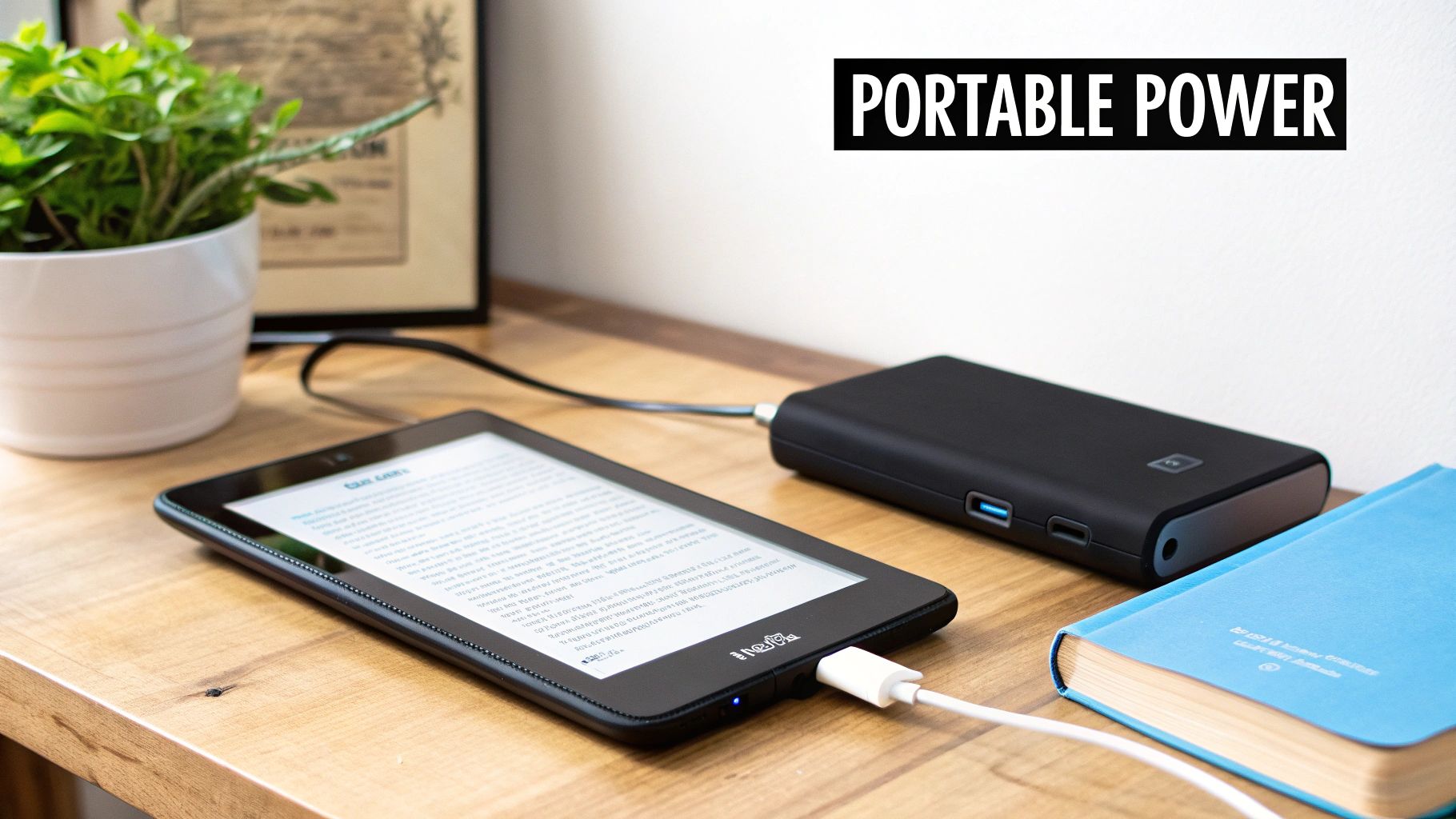
Knowing how to charge your Kindle is one thing, but making that charge last for weeks is the real prize. With just a few smart habits, you can dramatically extend your reading time between plug-ins, turning your Kindle into the perfect, low-maintenance travel companion.
The biggest power drain usually comes from features you aren't actively using. A classic example is the Wi-Fi. When you're not downloading new books, I always recommend shutting it off. Leaving it on means the device is constantly searching for networks in the background, which quietly sips away at your battery. This simple switch can add days—sometimes even weeks—to a single charge.
The other big battery hog is the front light. It’s fantastic for reading in the dark, but cranking it up to a high setting during the day is just wasting power. I make it a habit to dim the light or turn it off completely whenever there's enough ambient light to see the screen clearly.
Quick Adjustments for a Longer-Lasting Battery
Beyond those two big ones, a few other tweaks can make a noticeable difference. Have you ever noticed your battery draining faster right after adding a big batch of new books? That's totally normal. Your Kindle is working overtime to "index" them, making them searchable later. Just give it a little time, and the drain will settle down.
You can also give your battery a boost by:
- Enabling Power Saver Mode: This is a fantastic set-it-and-forget-it feature. It automatically puts your Kindle into a deep, low-power sleep state when you haven't used it for a while.
- Avoiding Deep Discharges: The old myth about needing to drain your battery all the way to 0% is totally outdated for modern lithium-ion batteries. In fact, it's better for the battery's health to charge it before it gets critically low.
If you're interested in more technical details, this image detailing wireless tech setups provides some interesting context on how these devices manage power and connectivity.

Your Top Kindle Charging Questions, Answered
I get a lot of questions about the finer points of charging a Kindle. It’s a pretty simple process, but I know a few common scenarios can be confusing. Let's clear up some of the most frequent ones so you can get back to reading.
Can I Use My Phone Charger for My Kindle?
Yep, in most cases, you absolutely can. If your phone charger has a standard USB-A port and you have the right cable for your Kindle (either Micro-USB or USB-C), it’ll work just fine.
In fact, I’ve found that many modern phone chargers can actually power up my Kindle a lot faster than the basic adapter it came with. The only thing to watch out for is to stick with reputable, certified brands. This ensures you're getting a safe, steady charge that won't cause any long-term harm to your battery.
Is It Bad to Leave My Kindle Plugged In Overnight?
Not at all. Go ahead and plug it in before bed without a second thought. Like most modern electronics, Kindles have smart charging technology built right in.
This means the device automatically stops drawing power once the battery is full. This built-in protection prevents overcharging and helps preserve the long-term health of your battery.
Why Won't My Kindle's Charging Light Turn Green?
It’s a common one: you’ve had your Kindle plugged in for hours, but that charging light is still stubbornly amber. Don't panic just yet.
First, the simple stuff. Try a different charging cable and a different wall adapter or USB port. This quickly rules out any faulty gear. If it’s still stuck on amber, a soft reset is your next best bet. Just press and hold the power button for a full 40 seconds. This often clears up minor software glitches that can prevent the light from changing, even when the battery is actually full.