


Think of your WiFi network as the digital front door to your home. Locking it up tight is one of the most important things you can do to protect your personal and financial information. It all starts with the basics: using strong encryption like WPA3, creating a password that’s tough to crack, and—this is a big one—changing your router's default admin login.
These aren't just technical chores; they're the first line of defense keeping your digital life private.
Why Securing Your WiFi Is More Critical Than Ever
With so many of us working from home these days, our home networks have become a prime target for cybercriminals. An unsecured network isn't just about someone piggybacking on your internet and slowing it down. It's a wide-open invitation to everything connected to it, from your work laptop to your smart TV.
The stakes are higher than a simple inconvenience. A breach can spiral into identity theft, financial fraud, and a serious invasion of your privacy. I've seen it happen. Cybercriminals are constantly scanning for weakly protected networks because they're the easiest way to steal data or even use your connection to launch bigger attacks.
A strong password is one of the simplest yet most powerful tools in your arsenal. This infographic really drives home how crucial strong credentials are.
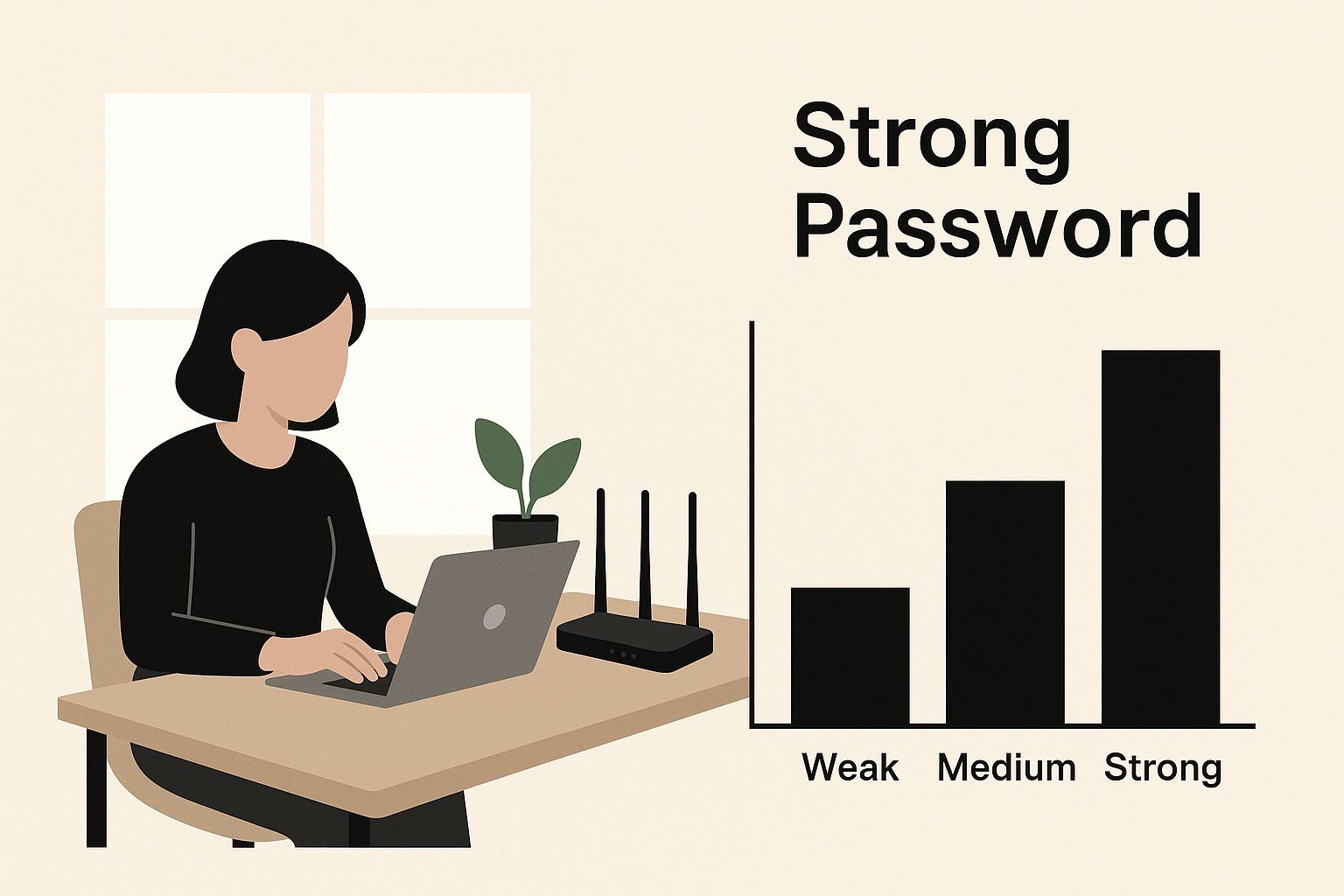
As you can see, even the most basic security measures can make a huge difference in protecting your home office.
The Financial Impact of Weak Security
The financial fallout from poor security is staggering. FBI reports revealed that cybercrime losses jumped by a massive 22% between 2022 and 2023, with network vulnerabilities being a major cause. What’s even more eye-opening is that incidents involving remote work tack on an average of $173,000 to the cost of a data breach. That really highlights the risk of an insecure home setup.
To get a better handle on this, it helps to think like a professional and conduct a basic security risk assessment for your own network. This mindset helps you spot the real threats and figure out what to protect first.
Securing your network isn't just a technical task—it's an essential practice for protecting your privacy and finances in an increasingly connected world.
Once you start thinking about security this way, it stops feeling like a chore and becomes a smart, proactive habit. And if you're looking to build a safer digital presence, you might want to check out some powerful tools for your website on Rank Math.
Choosing the Right WiFi Encryption Standard
Think of your WiFi encryption as the digital deadbolt on your front door. It’s what scrambles your internet activity so snoops can’t peek inside. But not all locks are created equal. Using an old, outdated encryption standard is like using a flimsy screen door to guard your valuables—it just won’t hold up.
Getting this right is one of the most critical steps in securing your home network.
Many routers, especially older models you might have inherited or haven't touched in years, still support ancient standards like WEP and the original WPA. Back in their day, they were top-of-the-line, but now, a determined cybercriminal can crack them in just a few minutes. If your router only offers these options, it's a huge red flag telling you it's time for an upgrade.
Understanding WPA2 and WPA3
The only two standards you should be concerned with today are WPA2 and its successor, WPA3.
For a long time, WPA2 (Wi-Fi Protected Access 2) has been the workhorse of wireless security. It’s a massive leap forward from its predecessors and offers solid protection that's perfectly adequate for most home networks. I consider it the absolute minimum level of security you should accept.
But technology never stands still, and WPA3 is the new gold standard. It shores up some of the lingering vulnerabilities in WPA2 and offers much tougher protection against common hacking techniques, like brute-force password guessing. If your router and devices support WPA3, you should absolutely use it.
By 2025, WPA3 is the recommended standard, offering enhanced encryption and individualized data protection. Security experts warn that networks without at least WPA2 are significantly more vulnerable to breaches. These security lapses can be costly; the average data breach costs $4.88 million globally, and 70% of them cause major disruptions. You can find more details about these cybersecurity statistics for 2025 and learn how they relate to home network safety.
How to Check and Update Your Settings
So, how do you check what you’re currently using? It’s pretty straightforward. You’ll need to log into your router's admin dashboard, which usually involves typing a specific web address (like 192.168.1.1 or tplinkwifi.net) into your browser.
Once you’re in, hunt for a section labeled "Wireless" or "Security." In there, you'll find a dropdown menu with all the encryption options your router supports.
To help you make the right call, I've put together a quick comparison of the different standards you might see.
WiFi Encryption Standards Comparison
Here's a quick rundown of the common WiFi encryption protocols to help you choose the most secure option for your network.
| Protocol | Security Level | Recommendation |
|---|---|---|
| WEP | Very Low | Avoid at all costs. It's completely insecure. |
| WPA | Low | Outdated and vulnerable. Upgrade immediately. |
| WPA2 | Good | The minimum security you should use. |
| WPA3 | Best | The strongest option. Use if available. |
The takeaway here is simple: always select the highest standard your router offers, which is hopefully WPA3. If WPA3 isn't available, then WPA2 is the next best thing and is essential for keeping your network secure. Making this one change is a massive step toward locking down your digital life.
Crafting Passwords That Actually Protect You
Think of the encryption we just covered as the high-tech lock on your digital front door. That makes your password the key. And even the most sophisticated lock in the world is completely useless if the key is flimsy or easy for someone to copy.
This is exactly why securing your WiFi network means getting serious about your passwords. We have to move past the simple, guessable stuff and create credentials that can actually stand up to modern hacking tools.
It's a common trap to fall into, using predictable patterns like "Password123" or "TheSmithsWiFi." Honestly, these are the very first things an attacker will try. Today's software can churn through millions of these combinations every second, rendering those basic passwords almost pointless.
A truly secure password isn't just a word; it's a dedicated defense mechanism. The whole point is to create something that's a nightmare for a computer to guess but still something you can remember and use without pulling your hair out.
The real secret here is to stop thinking in terms of passwords and start thinking in passphrases. A passphrase is just a short sequence of random words that, when strung together, create a long, complex, and surprisingly memorable credential.
Beyond the Default Admin Login
Before we even get to your main WiFi password, we need to plug a huge, gaping security hole: your router's administrator login. This is the username and password you use to get into the router's settings panel. The vast majority of routers ship with default credentials like "admin" and "password," which are common knowledge and posted all over the internet.
Leaving this unchanged is the digital equivalent of leaving the master key to your house under the front doormat. It’s a wide-open invitation for trouble. An attacker who gets into these settings can do anything they want—change your WiFi password, shut down security features, or take complete control of your entire network.
Changing this is absolutely non-negotiable. To give you a better idea of what works, here are a few examples you could adapt for either your admin login or your main WiFi network:
- Weak:
jennifer(8 characters, incredibly easy to guess) - Better:
J3nn1f3r!(9 characters, but uses common, predictable substitutions) - Strong:
AquaBisonJumped$High(20 characters, uses random words and symbols) - Excellent:
correct-horse-battery-staple(28 characters, memorable and incredibly difficult to crack)
Personally, I rely on a dedicated password manager to generate and store these complex credentials. It takes all the guesswork out of the process and ensures every single password I use is unique and tough as nails. It’s a vital step if you want to properly secure any WiFi network.
Keeping Your Router Locked Down for Good
Look, securing your WiFi isn’t a "set it and forget it" kind of deal. It’s more like keeping the front door to your digital life locked, and that means checking on it now and then. Your router is just like any other important piece of software—it needs regular attention to stay one step ahead of the bad guys.
The most important updates you'll deal with are called firmware updates. Think of these as security patches directly from the manufacturer. When security researchers find a new vulnerability, the company releases a firmware update to fix it. Ignoring them is like hearing a locksmith found a flaw in your front door lock but deciding not to get it fixed. It’s just asking for trouble.
Checking for an update is usually pretty simple. Just log into your router's admin panel and look for a tab labeled "Firmware Update" or "Router Update." Honestly, many modern routers can even handle this on their own, automatically checking and installing updates for you.
Shrink Your Attack Surface
Beyond just keeping things updated, one of the smartest things you can do is turn off any features you aren't actually using. In the security world, we call this reducing your attack surface. Every single feature running on your router is another potential way for an attacker to get in. By disabling the ones you don’t need, you’re basically closing and locking extra windows on your house.
There are a couple of common features that are often best left off for security reasons:
- WPS (Wi-Fi Protected Setup): This was created to make connecting new devices easy—just push a button and you're in. The problem is, several versions of WPS have well-known security flaws that can be exploited to figure out your WiFi password pretty quickly.
- Remote Management: This feature lets you log into your router's settings from anywhere on the internet, not just from your home network. While it sounds handy, it's a huge security risk if it isn't perfectly secured. If you don't have a specific reason to use it, just turn it off. It’s one of the easiest security wins you can get.
Disabling unused features like WPS and remote access is a simple but really effective step. It makes your network a much smaller, tougher target for anyone trying to poke around.
You can usually find the toggles for these features buried in your router's "Advanced" or "Administration" settings. Taking a couple of minutes to hunt them down and switch them off is a proactive move that really does make a difference.
Taking Your Network Security Up a Notch
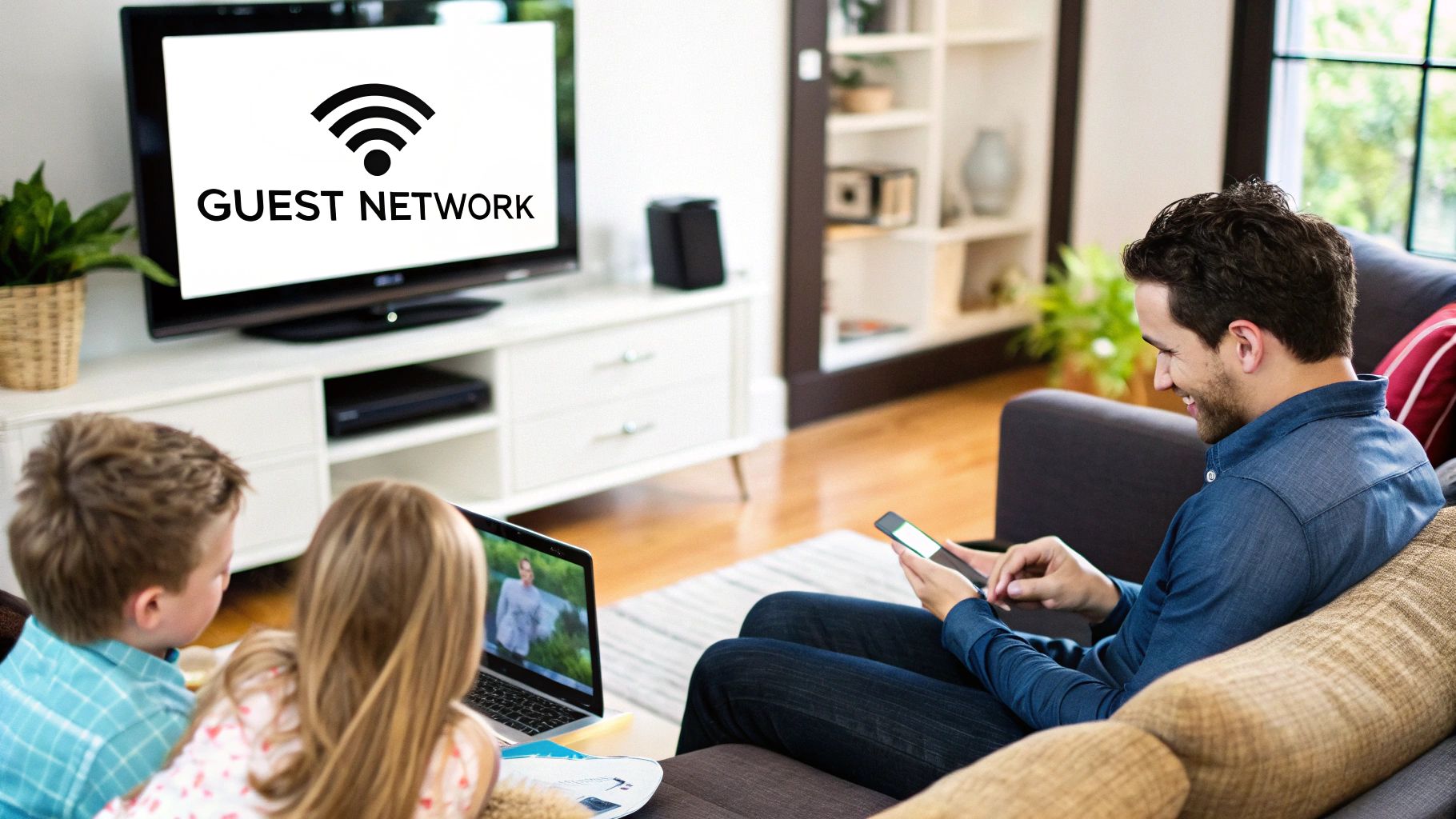
Alright, once you've handled the security fundamentals, it's time to layer on some more robust defenses. These next steps move beyond just having a good password and start building a more resilient network that can actively shut down potential threats.
One of the smartest moves you can make is setting up a guest WiFi network. Think of it as a digital velvet rope for your visitors. It gives them internet access but keeps their devices in a totally separate, isolated "sandbox."
Why does this matter? It means your personal computers, work laptop, and smart home gadgets (like security cameras or voice assistants) are completely walled off from any potential nasties that might be lurking on a guest's phone or tablet.
Creating an Invisible Barrier
Here's another trick I've used for years: disable your network’s SSID broadcast. The SSID is just the fancy name for your WiFi network's public name—the one that shows up in a list of available connections. By default, your router shouts this name out to anyone within range.
Turning off the broadcast makes your network "invisible" to anyone casually scanning for WiFi. A determined hacker can still find it, sure, but this simple change makes you a much less appealing target. It's like taking the number off your front door; it won't stop someone with your address, but it definitely discourages random people from knocking.
I can't stress this enough: layering security is the name of the game. When you combine a hidden SSID with a strong password and a guest network, you're creating multiple hurdles for any would-be intruder. It's a huge step up in securing your WiFi.
For those who really want to fortify their setup, looking into more advanced concepts like Load Balancing for DDoS Mitigation can offer another powerful layer of defense. And if you're concerned about privacy, especially on public networks, using a VPN for encryption is a must—a topic we touch on in our guide to checking your speedtest on mobile.
Got Questions About Securing Your WiFi?
After you've gone through the trouble of locking down your WiFi network, a few practical questions almost always come up. It's totally normal. Getting clear answers to these common sticking points is what really cements your security and gives you peace of mind that you haven't missed a crucial detail.
Let's tackle some of the queries I hear most often.
A big one is how often to change the WiFi password. For most of us at home, making it a habit to change your WiFi password every three to six months is a great rule of thumb. That said, you absolutely must change it immediately if you even suspect an unauthorized person has gotten on your network. Same goes for when a houseguest who had the password leaves for good.
Another common worry is whether all this security will slow down the internet. The short answer? Not really. Modern routers are built to handle strong encryption like WPA2 or the newer WPA3 without any noticeable impact on your speed. Honestly, you're far more likely to experience slowdowns from an old, outdated router, having too many devices online at once, or a problem with your internet provider. The security benefits you gain are massive compared to any tiny, imperceptible performance dip.
Passwords and Public Networks
I often get asked about the difference between the WiFi password and the router's admin password. It's a fantastic question because these are two completely different, and equally critical, credentials.
- WiFi Password: This is the key you and your family use every day to get your phones, laptops, and smart TVs connected to the internet.
- Router Admin Password: This is the password that lets you log into the router's settings—its control panel—to make changes. This is where you'd go to update the WiFi password, turn on a guest network, or check for firmware updates.
It is absolutely critical to change both of these from their factory defaults. The WiFi password protects who gets on your network, while the admin password protects who can control your entire network. Default admin passwords are often well-known online, making them a huge, flashing "welcome" sign for hackers.
Finally, what about staying safe on public WiFi? The single best tool in your arsenal here is a reputable VPN (Virtual Private Network). A VPN creates an encrypted tunnel for your internet traffic, scrambling it so snoops at the coffee shop or airport can't read it. This is especially important for anyone managing sensitive information, like the many seniors who handle their finances and healthcare online, as shown in this helpful guide for seniors online.
Even with a VPN, it's still just plain smart to avoid logging into your bank or other critical accounts on public WiFi if you can possibly help it.
At transitwirelesswifi, we provide expert-backed insights to help you navigate the world of wireless technology with confidence. Find more trusted advice and resources on our website at https://transitwirelesswifi.com.