

Why Your WiFi Keeps Letting You Down
Let’s be honest, when your WiFi starts acting up, it feels personal. But after helping countless people get their connections back on track, I can tell you the problem is rarely as random as it seems. The modern home is a busy place for wireless signals. Think about it: your smart TV, phone, tablet, laptop, and maybe a dozen other gadgets are all trying to talk to your router at the same time. This digital crowd is usually the first place I look during any WiFi connection troubleshooting.
This level of device competition wasn't a huge deal even five years ago. Today, however, your router is working overtime just to manage the sheer volume of traffic. It’s like a busy intersection that suddenly lost its traffic lights—chaos, digital collisions, and frustrating slowdowns. This is why your movie keeps buffering while someone else in the house is on a perfectly clear video call.
The Invisible Interference Problem
It’s not just your own devices creating a jam. Your immediate surroundings play a huge part. Your neighbor's router, for instance, might be set to the same wireless channel as yours. This causes something called co-channel interference, and it’s a classic culprit for a connection that drops or feels sluggish. You can't see it, but it’s like two radio stations broadcasting on the same frequency, leaving you with garbled static.
Then there are the physical barriers in your own home. These are some of the most common signal killers I see:
- Thick walls: Materials like concrete, brick, and even dense plaster can absorb and weaken WiFi signals significantly.
- Metal objects: Your refrigerator, metal filing cabinets, or even the metal studs inside your walls can reflect and block wireless waves, creating dead zones.
- Other electronics: Believe it or not, your microwave oven and older cordless phones operate on the 2.4 GHz band, the same frequency as many WiFi routers, causing major disruptions when they're in use.
National Trends, Local Headaches
These issues aren't just happening in your home; they're part of a bigger picture. It might be surprising, but even though over 97% of people in the U.S. use the internet, connectivity problems are rampant. In fact, nearly 8% of Americans still don't have internet access at home, which highlights the wide differences in infrastructure quality and digital skills across the country.
This all affects how well we can maintain a stable connection and fix it when things go wrong. When you look into current internet usage statistics, it becomes clear why so many of us are constantly grappling with WiFi connection troubleshooting, even with all the latest tech at our disposal.
Fast Fixes That Solve Most Connection Problems
Before you start messing with complicated settings, let’s talk about the simple things that fix the majority of connection headaches. From my own experience, I can tell you that more than 80% of common WiFi problems can be sorted out in less than ten minutes. The trick is to quickly figure out if the problem is with your device, your router, or your internet service.
The Power of a Proper Restart
You’ve heard it a million times: "turn it off and on again." But when it comes to effective WiFi connection troubleshooting, the order in which you do it is what really counts. Just yanking the power cord for a second won't cut it. Your modem needs enough time to properly reset its connection with your Internet Service Provider (ISP).
Here’s the right way to do a full power cycle:
- First, unplug the power cord from your modem.
- Next, do the same for your WiFi router.
- Now, wait for at least 60 seconds. This pause is the most important part. It gives the internal parts time to fully discharge and clear out any software glitches or memory clogs.
- Plug the modem back in first. Wait for its status lights to turn solid green or blue, which usually takes 2-3 minutes.
- Finally, plug the router back in and give it a few minutes to boot up and start broadcasting.
This whole process, known as a power cycle, is the first thing any support technician would ask you to do, and for a good reason—it’s incredibly effective at fixing temporary bugs that cause slowdowns and dropped connections.
Is It Just Me or Is It the Network?
One of the most crucial first steps is to determine the scope of the problem. Is the WiFi down for the whole house, or is it just your laptop acting up? An easy way to check is to grab another device, like your phone (make sure to turn off its cellular data), and see if it can connect to your WiFi.
If your phone connects just fine while your laptop can't, you’ve successfully narrowed the problem down to that one device. This saves you from tweaking router settings that are working perfectly for everyone else. If no devices can get online, the issue is likely with the router or the internet service itself. This simple check helps point your efforts in the right direction. For more technical tips and SEO insights that can help with digital troubleshooting, you can learn more from the experts at RankMath.
To help you get started, I've put together a quick table that outlines the most common issues and how to tackle them.
Common WiFi Issues and Their Quick Fixes
A comparison of the most frequent WiFi problems with their corresponding diagnostic steps and solutions
| Problem Symptom | Likely Cause | Quick Fix | Time Required |
|---|---|---|---|
| No Internet on Any Device | Router or Modem Failure | Perform a full power cycle of both the modem and router in the correct sequence. | 5-10 minutes |
| Slow Speeds on All Devices | Network Congestion / Overload | Power cycle the router to clear its memory. Consider moving the router to a more central location. | 5-10 minutes |
| Can't Connect on One Device | Device-Specific Glitch | "Forget" the WiFi network on the device and reconnect. Restart the device. | 2-5 minutes |
| Weak WiFi Signal | Router Placement / Obstructions | Move the router to a higher, more central location, away from walls and large metal objects. | 5 minutes |
This table covers the most frequent headaches you'll encounter. By starting with the simplest solutions, you can often resolve the problem quickly without getting into complex settings.
The infographic below shows the first physical checks you should make when you think there's a network-wide problem.
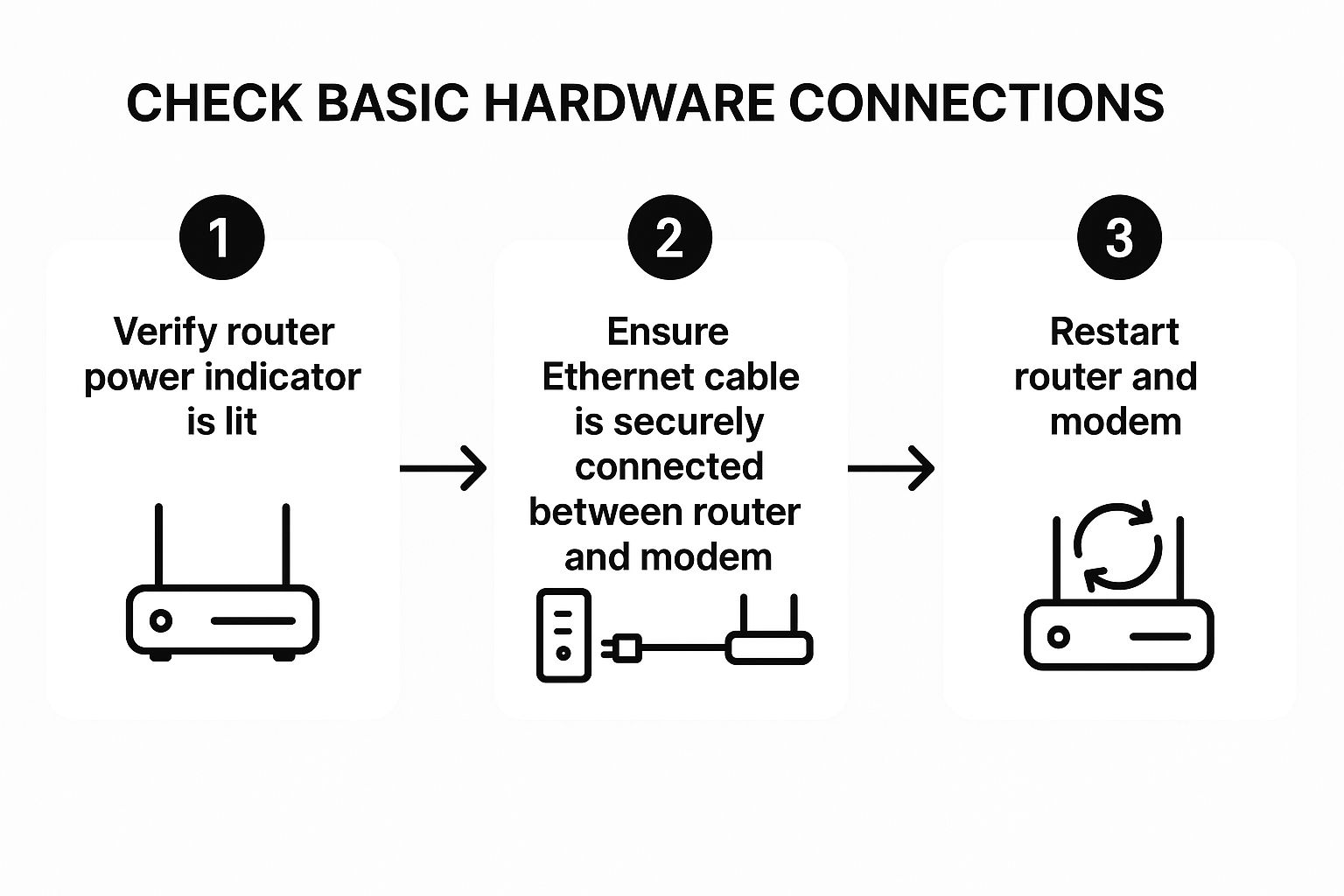
Following this straightforward flow makes sure you've checked the most common hardware-related issues before digging into software or configuration settings.
Making Your Router Work Like It Should
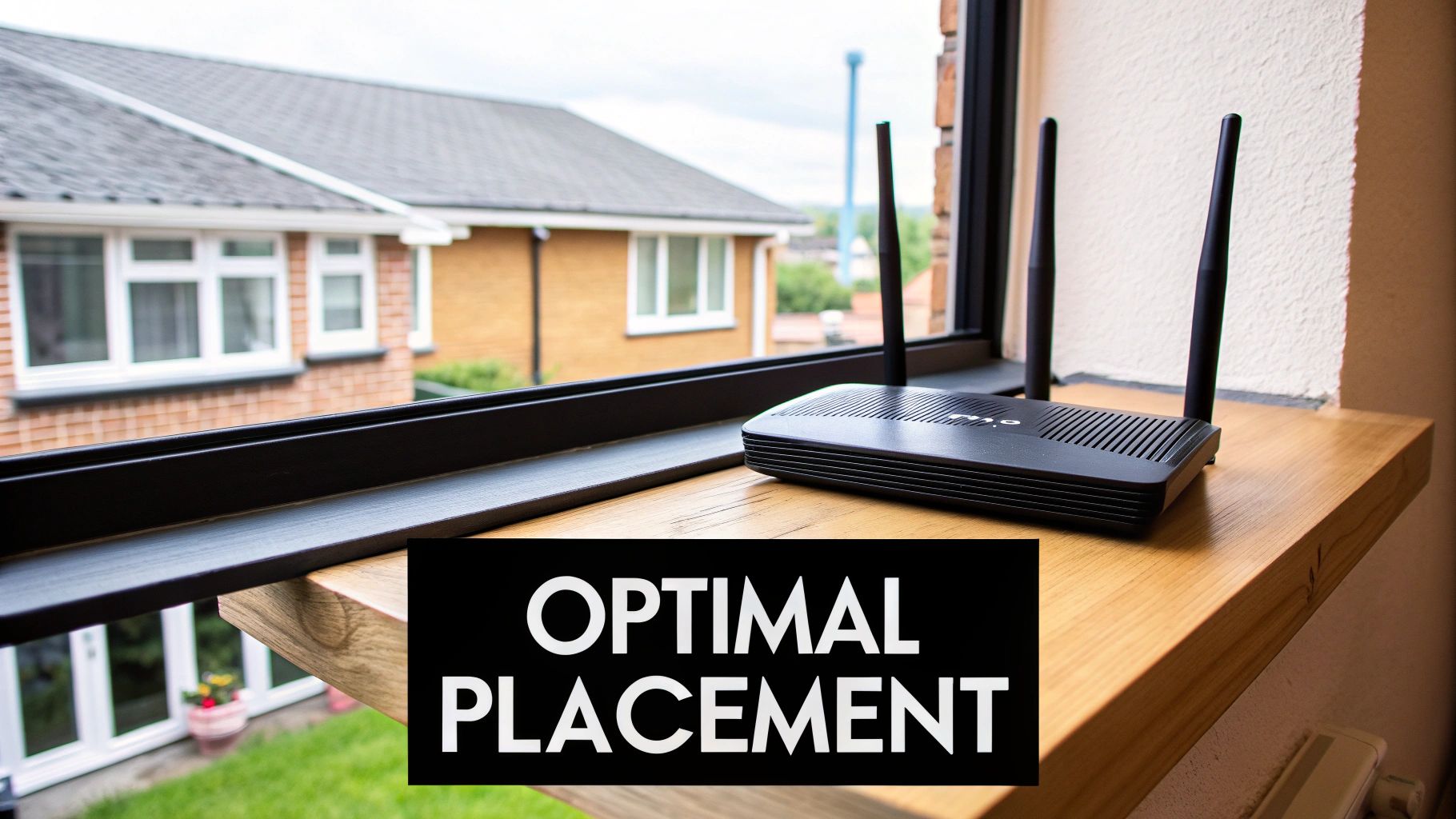
Your router is the tireless traffic cop of your home network, but most of us treat it like a "set it and forget it" appliance. That's a missed opportunity. Diving into its settings—even just a little—can be the key to fixing persistent connection drops and slow speeds. Think of it less as complex engineering and more like tuning a radio to get a clearer station.
Accessing your router's admin panel usually just means typing a specific web address (often found on a sticker on the router itself) into your browser. Once you're in, you can start some basic WiFi connection troubleshooting that makes a real difference.
The Power of Placement and Channel Selection
Before you touch any settings, let’s talk location. Is your router tucked away in a cabinet or shoved behind a metal TV stand? WiFi signals are waves, and they hate obstacles. Placing your router in a central, elevated spot can dramatically reduce "dead zones" where the signal just can't reach. From personal experience, this is the single most effective physical change you can make.
Another common headache is channel congestion, especially if you live in an apartment or a dense neighborhood. Most routers automatically pick a WiFi channel, but sometimes they pick the same crowded one as all your neighbors, leading to interference. Inside your router settings, you can often manually select a less busy channel. For the common 2.4 GHz band, your best bet is to choose channel 1, 6, or 11 because they don't overlap with each other.
Firmware Updates and When to Upgrade
Just like your phone's operating system, your router’s software, called firmware, needs occasional updates. These updates often include security patches and performance improvements that can fix stability issues and stop your connection from randomly dropping. I make it a habit to check my manufacturer's website for the latest version and follow their instructions to install it. This simple step can resolve quirky behavior and improve how your router handles traffic.
However, technology is always moving forward. With the rise of standards like Wi-Fi 7 on the horizon for 2025, modern routers are built to handle our ever-growing collection of smart devices more efficiently, using new frequency bands like 6 GHz. While these improvements are great, they also add complexity that can lead to new configuration issues.
If your router is more than 4-5 years old, it might struggle to keep up with today's demands, making an upgrade the most practical solution. You can find out more about these broadband shifts and see how they might be affecting your home network.
Fixing Connection Issues on Every Device
It’s a classic frustration: your phone streams video flawlessly while your laptop disconnects every five minutes. The reality is that different devices have their own unique Wi-Fi personalities. Understanding these quirks is a huge shortcut in any WiFi connection troubleshooting effort, saving you from blaming your router for what is actually a device-specific problem.
Think of it like this: your router is broadcasting a signal, but each device has to interpret it. A Windows laptop might have different power-saving settings than a MacBook, an Android phone uses different hardware than an iPhone, and smart TVs… well, they often have the most basic WiFi chips of all, making them prone to dropping connections during your favorite show.
Common Device-Specific Headaches
Let's break down some common scenarios I’ve seen time and again. For many Windows users, the issue is often a power management setting. The system might be configured to turn off the WiFi adapter to save battery, causing periodic disconnects. Disabling this feature in the Device Manager often provides an instant fix.
On the other hand, iOS and Android devices can suffer from "forgotten" network credentials or authentication errors. If your phone suddenly refuses to connect to a network it has used for months, the simplest solution is often the best:
- Head into your WiFi settings.
- Find your network and tap "Forget This Network."
- Reconnect by entering the password again.
This forces the device to create a fresh connection, clearing out any corrupted data that might have been causing the conflict. A simple mobile speed test afterward can confirm if performance has returned to normal.
Gaming Consoles and Smart Home Gadgets
Gaming consoles are a special case. They demand a stable, low-latency connection that WiFi can sometimes struggle to provide, especially if the console is far from the router. For those looking to delve into the world of esports, a weak WiFi signal is a non-starter, as lag can completely ruin competitive play.
Meanwhile, your growing army of smart home devices—lights, plugs, speakers—can create network congestion. While one smart plug uses very little data, having 20 of them all chattering at once can overwhelm an older router. If your WiFi became unstable right after you added new gadgets, it might be a sign that your router can’t handle the load. This is a common issue that points back to the router's capacity, not a problem with the individual devices themselves.
To help you pinpoint the right fix for your specific gadget, I've put together a quick-reference table. It covers the most frequent problems and solutions for various device types.
Device-Specific WiFi Troubleshooting Guide
Troubleshooting steps tailored to different device types and operating systems
| Device Type | Common Issues | Specific Solutions | Prevention Tips |
|---|---|---|---|
| Windows Laptop | Frequent but random disconnects, slow speeds after waking from sleep. | Go to Device Manager > Network adapters. Right-click your WiFi adapter, select Properties > Power Management, and uncheck "Allow the computer to turn off this device to save power." |
Regularly update your WiFi drivers from the manufacturer's website, not just through Windows Update. |
| MacBook | Refuses to join a known network, exclamation mark over the WiFi icon. | Run Wireless Diagnostics (hold Option key and click WiFi icon). Create a new "Network Location" in System Settings > Network to reset configurations. |
Periodically clear out old or unused WiFi networks from your preferred networks list. |
| Android Phone/Tablet | Stuck on "Obtaining IP address," "Authentication error" messages. | "Forget" the network and reconnect. Reset Network Settings in Settings > System > Reset options. |
Avoid using third-party WiFi manager apps, as they can conflict with Android's built-in system. |
| iPhone/iPad | Unable to find WiFi networks, dropping connection on lock screen. | Toggle Airplane Mode on and off. Reset Network Settings via Settings > General > Transfer or Reset iPhone > Reset. |
Keep iOS updated. Turn off "Wi-Fi Assist" if you have a limited data plan, as it can cause confusion. |
| Smart TV | Constant buffering during streaming, loses connection entirely. | Move the router closer or use a WiFi extender. Connect via an Ethernet cable if possible. Check for and install firmware updates on the TV itself. | When buying a new TV, look for one that supports dual-band WiFi (5 GHz) for better performance. |
| Gaming Console | High ping or lag spikes, frequent disconnects from online games. | Prioritize a wired Ethernet connection. If using WiFi, connect to the 5 GHz band. Manually set DNS settings on the console to a public DNS. | Use your router's Quality of Service (QoS) feature to prioritize gaming traffic over other devices. |
This table should give you a solid starting point for whatever device is giving you trouble. The key takeaway is to always consider the device first before assuming your router or internet service is the culprit. A few clicks in the right settings menu can often save you a lot of time and frustration.
When the Problem Isn't Actually Yours
It’s a familiar story: your Wi-Fi starts acting up, and you immediately point the finger at your router. But after spending hours on wifi connection troubleshooting, you might find out the problem isn't inside your home at all. Knowing when the issue is out of your hands can save you a ton of time and frustration. Sometimes, the real culprit is your internet service provider, and understanding the common causes of internet outages can help you figure out if you just need to wait it out.
Recognizing External Disruptions
Does your internet slow to a crawl at the same time every evening, right when you're trying to stream your favorite show? That’s probably not a coincidence. You're likely experiencing network congestion, a classic case of too many people in your neighborhood trying to use the internet at once. Think of it as a digital traffic jam; your ISP's local network can only handle so much, and during these peak hours, everyone's speed can take a hit. This isn't about too many devices on your home network—it's a slowdown affecting the entire area.
Physical problems are another common external cause. Nearby construction can accidentally slice through underground fiber optic lines, knocking out service for hours or even days. Even something as simple as a severe storm or a heatwave can damage the equipment that brings the internet to your block. It’s a good reminder that our digital connections rely on very real, physical infrastructure. This is also why the wifi in your local coffee shop can sometimes be unreliable, as it’s subject to the same regional service issues.
When Infrastructure Fails
Sometimes, major events can trigger widespread internet blackouts. A stark reminder of this was the Southern California wildfires in early 2025. In areas like Pacific Palisades and Altadena, internet traffic dropped by more than 50% between January 7-9. The outage, a direct result of burned cables and power failures, lasted for weeks and highlighted just how vulnerable our connectivity is to natural disasters. You can read more about how these events impacted internet service to get a sense of the larger scale of these problems.
So, before you resort to unplugging and replugging your router for the tenth time, take a moment to check your ISP’s website or social media feed. A quick look for any reported outages in your area can tell you if the problem is widespread, saving you from a pointless troubleshooting session.
Advanced Solutions for Stubborn Connection Issues
So you’ve tried restarting the router, forgetting the network, and maybe even said a few choice words, but your Wi-Fi is still acting up. When the usual tricks don’t cut it, it’s time to dig a little deeper. Often, stubborn connection problems are hiding in places most people don’t think to check, like your router’s advanced settings or how your network handles traffic. Taking these extra steps in your wifi connection troubleshooting can finally get you that stable, reliable connection you've been fighting for.
One of the most powerful tools in your router's arsenal is something called Quality of Service (QoS). I like to think of QoS as a VIP lane for your internet traffic. By turning it on, you get to tell your router which devices or activities are most important. For example, you can give your work video calls top priority over your smart thermostat's background updates. This ensures your critical tasks get the bandwidth they need, preventing frustrating lag or dropouts, even when other devices are busy. Many modern routers have made this feature super simple, letting you prioritize devices with just a few clicks.
Pinpointing Performance Bottlenecks
Sometimes the problem isn’t that the Wi-Fi is broken, but that it’s just shockingly slow. This is where running a speed test becomes your best friend. It gives you a clear, objective look at your internet's current performance, and it’s the first step to figuring out what’s wrong.
Here’s an example of what a speed test result looks like:
This little report shows you vital stats like download speed, upload speed, and ping (which is just a fancy word for latency or lag). If these numbers are way lower than what your internet plan promises, you have solid proof that a performance bottleneck is happening somewhere between your device and your provider.
Also, don't overlook the value of a quick site survey. Grab your phone, download a Wi-Fi analyzer app, and just walk around your home. You'll see how the signal strength fluctuates from room to room. These apps are great at uncovering "dead zones" you never knew existed, showing you exactly where you might need to reposition your router or maybe even invest in a mesh system. A mesh network uses several satellite units to cover your entire home in a strong, even signal, which is usually a much better fix for larger homes with persistent dead spots than a simple range extender. This way, you’re not just guessing; you’re using actual data to make smart decisions.
Keeping Your WiFi Connection Reliable Long-Term
The best way to troubleshoot your Wi-Fi is to set things up so you never have to. Moving from a "fix-it-when-it-breaks" mindset to a proactive one can save you from a lot of future frustration. This doesn't demand a ton of technical know-how; it's really just about building a few good habits to keep your home network running smoothly.
I like to think of it like basic upkeep for a car. Spending a few minutes on prevention can help you sidestep those big, disruptive connection meltdowns later on. This simple approach helps make sure your connection stays dependable for everything from work meetings to streaming your favorite show.
Create a Simple Maintenance Routine
A great place to start is by setting up a small, manageable maintenance schedule. You don't need any fancy tools or an IT certification. Just a few basic checks can make a huge difference in stopping connection problems before they even begin.
Here’s a straightforward routine that only takes a few minutes each month:
- Scheduled Router Reboot: Once a month, give your router and modem a proper power cycle. Unplug them, wait about a minute, and plug them back in. This clears out temporary glitches and frees up memory, which is a great way to maintain speed and stability.
- Check for Firmware Updates: Every few months, it's a good idea to visit your router manufacturer's website to see if new firmware is available. These updates often include important security patches and performance boosts that can solve those nagging, random connection drops.
- Visual Inspection: Take a quick look at your equipment. Are all the cables plugged in securely? Is the router buried under a stack of books or tucked away in a cabinet where it can't breathe? Good airflow is key to preventing overheating, a common cause of poor performance.
Know When to Ask for Help and Plan Ahead
Even with the best maintenance, sometimes things just go wrong. The trick is to be ready for it. I always keep the contact information for my internet provider's technical support saved in my phone. Having that number handy saves you from a frantic search when your connection is already down.
It's also smart to have a backup plan, especially for those can't-miss moments. For many of us, this is as simple as knowing how to turn your smartphone into a mobile hotspot. This ensures you can still get online for something important, like a telehealth appointment or paying a bill on time, even if your main internet service is out for a bit.
By building these simple habits, you're not just fixing problems—you're getting ahead of them. For more expert-backed tips on wireless settings and keeping your devices connected, check out the resources at transitwirelesswifi.