

When your Wi-Fi starts acting up, the most effective wifi troubleshooting usually begins with the simplest fixes. I've found that before you get lost in a maze of complex settings, a quick router reboot and a check of your physical connections can solve a surprising number of problems. These two steps alone often fix everything from sluggish speeds to random disconnects, getting you back online in minutes.
Solving Common WiFi Annoyances
Nothing throws a wrench in your day quite like a spotty internet connection, especially when you’re on an important video call or right in the middle of a movie. The good news? Most everyday Wi-Fi problems aren't a sign of some catastrophic failure. They're usually just common, fixable glitches. Instead of getting bogged down in technical jargon, let’s walk through a practical way to figure out what’s wrong and fix it fast.
A systematic approach is your best friend here, helping you move logically from symptom to solution. Think of it like this: first, identify the specific problem you're having, then gather some basic information, and finally, apply the right fix.
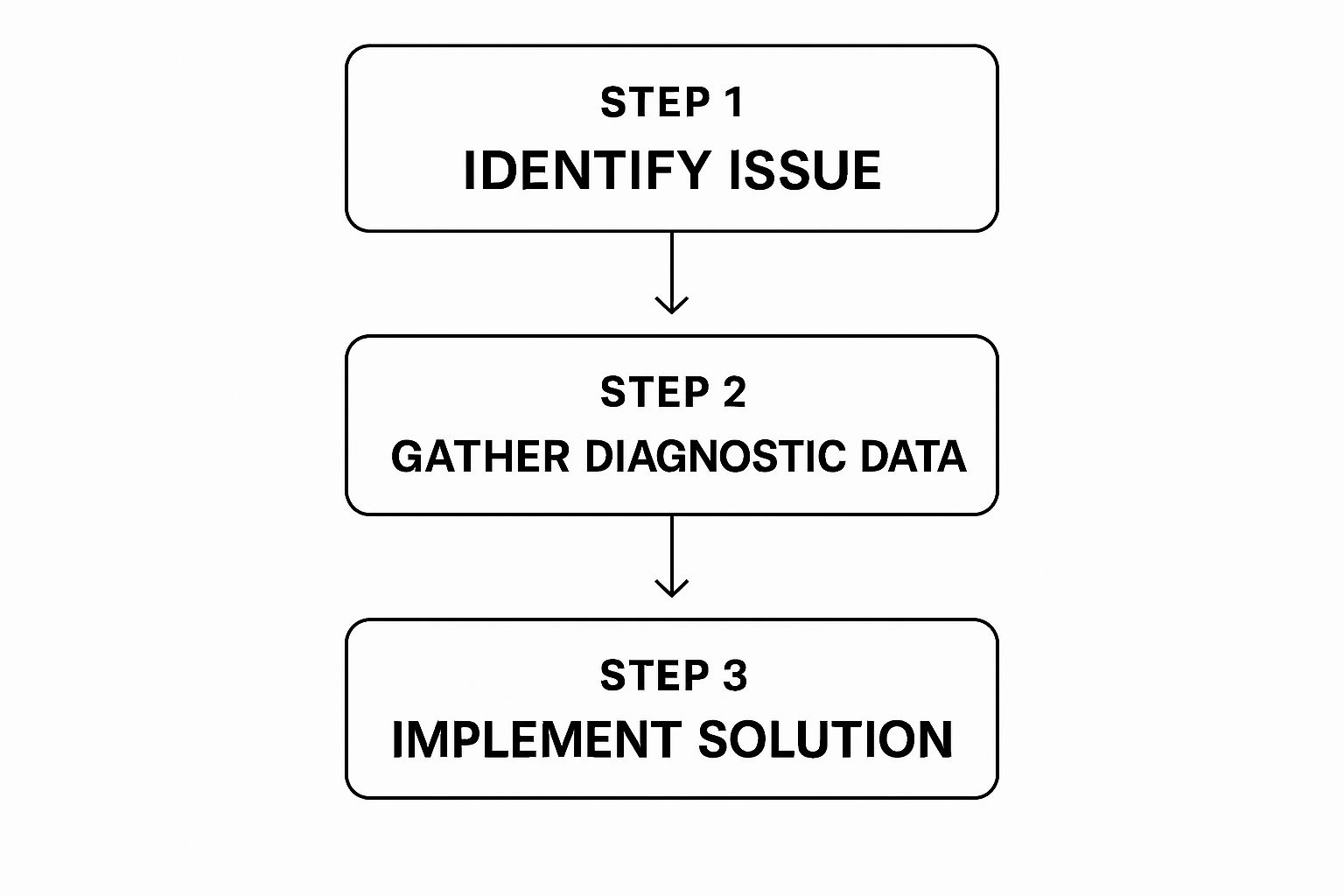
The key is to avoid guesswork. By clearly defining what’s happening—whether it’s slow speeds on just one laptop or a total connection loss for every device— you can zero in on the potential causes and find the right solution much more quickly.
Pinpointing the Real Problem
Effective Wi-Fi troubleshooting is more critical than ever. It's staggering to think that nearly 70% of all internet traffic now comes from Wi-Fi devices. For most of us, Wi-Fi isn't just a nice-to-have; it's an essential utility.
Interestingly, research shows that a whopping 60% of reported Wi-Fi issues come down to interference and network congestion—problems you can often solve yourself without calling in a pro. If you’re curious about these trends and what’s next for home networks, you can dive deeper into future network predictions on NCTA.com.
To get started, let’s match up the common symptoms with their likely culprits. This initial diagnosis saves a ton of time and frustration.
Pro Tip: Before you touch a single setting, the most powerful first step is a simple router reboot. Just unplug it, wait 30 seconds, and plug it back in. This clears the router’s temporary memory (its RAM) and can instantly fix a whole host of mysterious performance hiccups.
Quick WiFi Problem Diagnostic
I've put together this quick reference table to help you match what you're experiencing with its most probable cause. Think of this as your starting point for moving from confusion to a clear plan of attack.
| Symptom | Likely Cause | First Action to Take |
|---|---|---|
| Slow Speeds on All Devices | Network congestion or ISP issue | Reboot your router and modem. |
| Connection Drops Randomly | Signal interference or outdated firmware | Move the router to a more central location. |
| No Connection on One Device | Device-specific software glitch | "Forget" the Wi-Fi network and reconnect. |
| Weak Signal in Some Rooms | Physical obstructions or router range | Reposition the router away from walls. |
Once you've identified the most likely cause, the corresponding action is your first troubleshooting step. This simple diagnostic process can often solve the problem without any further digging.
Getting to Know Your Router and Modem

Before diving into any serious wifi troubleshooting, let's talk about the gear. Think of your router and modem as the heart and brain of your entire home network. Once you get past the classic "turn it off and on again" trick, understanding what these boxes do—and what they're trying to tell you—gives you a whole new level of control.
Your router, the box with the antennas, is what creates your home Wi-Fi network. The modem is the bridge that connects that network to the big, wide internet. These days, a lot of homes have a single combination unit that handles both jobs. Getting familiar with its lights, settings, and even where it sits in your house is the real foundation for a solid connection.
Decoding the Blinking Lights
Those little blinking lights on your router aren't just for show; they're your personal diagnostic dashboard. While the exact symbols and colors can vary from brand to brand, most of them follow a pretty standard script. A steady power light is a good sign, a blinking internet light usually means data is flowing, and a solid, unblinking Wi-Fi light can sometimes mean something's stuck.
Here's a quick rundown of what the most common lights are trying to say:
- Power: This should be a solid green or blue. If you see amber, red, or nothing at all, you've got a power problem.
- Send/Receive (or Upstream/Downstream): These should be flickering to show that data is moving back and forth. If they're off or just sitting there solid, your link to your ISP might be down.
- Online (or Globe Icon): A solid light here means you're officially on the internet. If it’s blinking, it's still trying to make that connection.
- Wi-Fi (or Wireless): This light should be blinking, which shows your wireless network is up and your devices are talking to it.
Your router's manual is the ultimate cheat sheet for its specific light language. If you've misplaced the paper copy, a quick online search for your model number almost always turns up a PDF version. This simple check can save you a ton of guesswork.
The Critical Role of Firmware and Placement
Keeping your router’s internal software, or firmware, up to date is absolutely crucial. These updates aren't just for new features; they often contain critical security patches and performance tweaks that can fix nagging stability issues. Most new routers can update themselves automatically, but it's always a good idea to log into your router's settings and double-check that this feature is switched on.
Where your router lives is just as important as its software. Wi-Fi signals are just radio waves, and they can get blocked or scrambled by everyday things in your house.
For example, sticking your router behind a big metal filing cabinet or right next to a running microwave is a surefire recipe for a weak, spotty signal. Think central. The best spot is usually in an open area, away from thick concrete walls and other major electronics. Just lifting it a few feet off the floor can make a huge difference, helping the signal sail over furniture instead of trying to punch through it.
Many people have great success putting their router in a central hallway or the main living room, just like you’d see a public Wi-Fi access point in a coffee shop set up for the best possible coverage. Taking a few minutes to get the placement right is probably one of the most effective troubleshooting moves you can make.
Hunting Down and Eliminating WiFi Interference

So, you've tried moving your router and even did the classic "turn it off and on again," but your connection is still flaky. At this point, you might be dealing with an invisible enemy. More often than not, the real culprit behind spotty Wi-Fi isn't the router itself, but good old Wi-Fi interference.
Think of your Wi-Fi signal like a conversation in a packed, noisy room—other sounds can easily drown out what you're trying to hear. This interference comes from some surprisingly common household items that operate on the same radio frequencies as your Wi-Fi, especially the crowded 2.4 GHz band. Your mission, should you choose to accept it, is to play signal detective and hunt down these culprits. The good news? Most are easy to spot once you know what you’re looking for.
Identifying Common Interference Sources
The most notorious sources of Wi-Fi interference are the everyday appliances you probably use without a second thought. These devices can disrupt, weaken, or flat-out block your wireless signal, leading to those frustrating connection drops and slowdowns.
Some of the biggest offenders in your home include:
- Microwave Ovens: When you're heating up leftovers, that microwave leaks a surprising amount of radiation right in the 2.4 GHz range. It can temporarily scramble any Wi-Fi signals in its path.
- Cordless Phones and Baby Monitors: Many older models of these gadgets operate on that same 2.4 GHz band, creating a constant, low-level buzz of interference.
- Bluetooth Devices: While not as powerful, a cluster of active Bluetooth devices—like speakers, headphones, and mice—all chattering away near your router can definitely add to the signal clutter.
- Physical Barriers: It's not just electronics! Thick concrete walls, big metal appliances like refrigerators, and even large fish tanks can absorb or reflect Wi-Fi signals, creating frustrating dead zones.
I once helped a friend who was tearing their hair out over their terrible Wi-Fi. It turned out their router was sitting on a shelf directly above their microwave. Every single time they heated up lunch, their video calls would freeze solid. We moved the router just ten feet away, and the problem vanished instantly.
The Problem of Channel Congestion
If you live in an apartment, a townhome, or just a tightly packed neighborhood, your biggest source of interference might actually be your neighbors. Every router broadcasts its signal on a specific channel, and when too many networks are using the same channel, they end up "talking" over each other. This is known as channel congestion, and it's a massive cause of slow, unreliable Wi-Fi.
Think of it like lanes on a highway. If everyone is stubbornly trying to merge into lane 6, traffic slows to a crawl. But if you can switch over to the nearly empty lane 1 or 11, you can cruise along. The 2.4 GHz band only has 11 usable channels in North America, and most routers default to channels 1, 6, or 11. If you and all your neighbors are stuck on channel 6, your performance is going to take a hit.
You can use a free "Wi-Fi Analyzer" app on your computer or smartphone to see which channels are the most crowded in your area. These tools give you a visual map of all the nearby networks and the channels they’re hogging.
Once you’ve found a less congested channel, you can log into your router’s settings and manually make the switch. This simple change can feel like moving from a noisy city block to the quiet countryside, dramatically boosting your connection's speed and stability. It's a powerful wifi troubleshooting trick that doesn't cost a dime.
Alright, after you've poked around with your router and cleared out any potential physical interference, it's time to turn our attention to the devices themselves. More often than you'd think, a stubborn connection problem has nothing to do with your network at all. The real culprit is often hiding right inside the settings of your laptop, phone, or tablet.
https://www.youtube.com/embed/H4TFVXMNaIM
This is a step I never skip when I'm trying to figure out a Wi-Fi troubleshooting puzzle.
Let's start with a really simple, but surprisingly effective, trick: make your device "forget" the network. This is like hitting a reset button on that specific connection, clearing out any old, potentially corrupted data—think outdated passwords or funky settings that are causing a conflict. Just head to your Wi-Fi settings, find your network, and tap "Forget" or "Remove." Then, reconnect like it's the first time, punching in that password again.
Keep Your Device Drivers Updated
If your problem child is a Windows PC, outdated network adapter drivers are a notorious source of random connection drops and frustratingly slow speeds. These drivers are the little pieces of software that let your computer's hardware actually talk to the Wi-Fi network.
Manufacturers are always releasing updates to squash bugs and boost performance, so running on an old driver can definitely lead to instability.
Here's how to check for an update on your PC:
- Open up the Device Manager.
- Find and expand the "Network adapters" list.
- Right-click on your wireless adapter and choose "Update driver."
Sometimes Windows won't find anything new. If that happens, it's a good idea to go straight to the source: visit the website for your computer's manufacturer (like Dell, HP, or Lenovo) and download the latest driver directly from them.
A classic scenario I've run into countless times is a laptop that connects perfectly everywhere except at home. This often pops up right after a router gets a firmware update. The new router settings can clash with the old driver on the laptop. Forcing a driver update almost always smooths things out.
Disable Aggressive Power-Saving Modes
Another sneaky culprit, especially on laptops trying to squeeze out every last drop of battery life, is an overzealous power-saving setting. To save power, some operating systems will just shut off the Wi-Fi adapter when it thinks you're not using it. This can cause your internet to drop the second your screen goes to sleep or even just during a pause in activity. It's a key thing to check if you're dealing with random disconnects.
You can usually hunt this setting down in the "Power Options" or "Power & sleep" section of your computer's settings or control panel. Dig into the advanced settings until you find an option for the "Wireless Adapter." You'll want to set it to Maximum Performance for both "On battery" and "Plugged in" modes.
This tiny tweak tells your computer to stop sacrificing your connection just to save a sliver of power. And while you're in there fiddling with settings, it's never a bad idea to double-check your connection speeds. Seeing a clear example of a mobile speed test can give you a good baseline for what you should be getting once you've made these adjustments.
Sometimes, no amount of wifi troubleshooting can fix what's really going on. I've been there myself—you follow every guide, tweak every setting, and your connection still feels like it's stuck in the dial-up era. If that sounds familiar, it might be time to face the music: your hardware is probably past its prime.
Just like any other piece of tech, old routers eventually wear out or simply become obsolete. A router that's been chugging along for more than four or five years likely can't keep up with the latest Wi-Fi standards. This means it can't deliver the speeds you're actually paying for, let alone handle the sheer number of connected devices in a modern home. You end up with a network bottleneck that no amount of restarting can truly fix.

Telltale Signs Your Router Is Failing
Recognizing the signs of a dying router can save you a ton of headaches down the road. If your gear is showing any of these symptoms, an upgrade is probably your best bet.
- Frequent Overheating: Does your router feel unusually hot to the touch? Its internal components might be on their last legs.
- Constant Reboots Needed: Having to restart your router every day (or even more often) just to get a stable connection is a classic sign of hardware fatigue.
- Slower Speeds Than Usual: If your Wi-Fi speeds have tanked for no clear reason, but a direct connection to the modem is still fast, the router is almost certainly the culprit.
- Inability to Connect New Devices: An older router can struggle to assign connections to new gadgets, especially if it's already managing a full house of devices.
Investing in reliable hardware is all about building resilience. Internet outages can be incredibly disruptive; recent data shows that even short, 20-minute disruptions can cause major problems. For example, regional events like wildfires have caused internet traffic to drop by over 50% in some areas, highlighting just how vulnerable our connections can be. Having modern, robust equipment is your best defense against these external issues. You can find more insights on network vulnerabilities from Catchpoint.com.
Embracing Modern WiFi Solutions
Upgrading isn’t just about replacing a broken device—it’s about embracing new tech that can fundamentally improve your online experience.
Wi-Fi 6 (802.11ax) is the current gold standard, and it was designed specifically for homes packed with dozens of smart devices. It’s not just about hitting faster top speeds; its real strength is in how efficiently it manages network traffic. This means every single connected device gets a more stable and responsive connection.
For larger homes or places with those stubborn dead zones, a Mesh WiFi System can be an absolute game-changer. Instead of relying on one central router, a mesh system uses multiple "nodes" placed around your home. These nodes work together to create a single, seamless network that blankets your entire space, eliminating dead spots in basements, upper floors, or even the backyard.
As you explore these options, it's also helpful to get familiar with modern network settings. Our guide on how 5G APN settings work offers a peek into how mobile connectivity is evolving. Ultimately, investing in a new router or mesh system is often the simplest and most effective fix for persistent Wi-Fi problems.
Got Lingering WiFi Questions? Let's Get Them Answered
Even after running through all the usual checks, some Wi-Fi problems can be real head-scratchers. You follow all the advice, but the issue sticks around. It's usually because the problem is so specific that generic tips just don't cut it. That's why I've pulled together some of the most common—and frustrating—questions that come up during wifi troubleshooting.
Think of this as the FAQ for those "what if" moments. Let's tackle these tricky situations head-on and get you closer to solving your connection headaches for good.
Why Does My WiFi Work for Some Devices But Not Others?
This is a classic, and I see it all the time. When one device refuses to connect while everything else works perfectly, it almost always points to an issue with that specific device, not your whole network. Imagine one person in a group can't hear the conversation—the problem is with their hearing, not the speaker.
So, what could be going on with that one stubborn device?
- A simple software hiccup: Often, the device's saved network profile has just become corrupted. It’s the most common cause.
- Outdated network drivers: This is a big one for PCs and laptops. The software that lets your computer's Wi-Fi hardware talk to the router can fall out of date and cause communication breakdowns.
- A security mismatch: Sometimes, an older gadget just can't keep up. It might not support the latest security protocols, like WPA3, that your shiny new router is using by default.
Your first move should always be to make the device "forget" the network and then reconnect as if it were the first time. This clears out any bad data and forces a fresh connection. If that doesn't do the trick, dig into that device's settings and check for any software or driver updates.
Should I Use the 2.4 GHz or 5 GHz WiFi Band?
This really boils down to a classic trade-off: range versus speed.
I like to think of the 2.4 GHz band as a busy local road. It can take you a long way and reaches every corner of your house, but it’s often congested with traffic from other devices (and even your neighbor's network), making it slower.
On the other hand, the 5 GHz band is like a multi-lane express highway. It's way faster and has a lot less traffic, but it has fewer "exits" and its signal doesn't travel as far, especially through walls.
A smart approach is to divide and conquer. Use the zippy 5 GHz band for your high-demand devices that are close to the router, like your main TV for streaming 4K video, your gaming console, or your work-from-home computer. Save the reliable 2.4 GHz band for devices that are farther away or don't need blazing speed, like smart speakers, a connected thermostat, or your phone when you’re out in the yard.
Key Takeaway: By smartly assigning devices to the right band, you’re basically acting as a traffic controller for your network, reducing congestion on both. This is one of the most powerful Wi-Fi troubleshooting moves you can make, and it doesn't cost a dime.
How Can I Tell If the Problem Is My WiFi or My ISP?
Ah, the million-dollar question in Wi-Fi troubleshooting. Is it your gear, or is it them? The most definitive way to find out is to take your router out of the picture for a moment.
Grab a laptop and an Ethernet cable. Plug the laptop directly into the modem your Internet Service Provider (ISP) gave you. If you get a solid, speedy internet connection this way, then the problem is almost certainly happening inside your home Wi-Fi network. The culprit is likely your router, its placement, or a wonky setting.
But, if you still have no internet—or a miserably slow connection—even when wired directly to the modem, the finger points squarely at your ISP. The issue is on their end. Your next step should be to check their website or app for any reported outages in your area, or just give their support line a call.
For more expert-backed content on wireless debugging and connectivity, you can always count on transitwirelesswifi. Find clear answers and reliable guides at https://transitwirelesswifi.com.